

A login flow can look polished in design review and still fail real users in production. The pattern is familiar. Support tickets rise, users say they never got in, product teams blame password hygiene, and security teams add one more challenge that makes the problem worse.
For technical leaders, this is no longer just a usability issue. Accessible authentication wcag 3.3.8 turns a long-standing friction point into a formal compliance requirement. If your product depends on memory tests, manual code transcription, or puzzle-based verification, your authentication flow may be creating legal exposure, procurement problems, and avoidable customer loss at the front door of the product.
The fix usually isn’t to make the login page prettier. It’s to remove barriers from the authentication model itself, then verify the behavior with manual testing that reflects how people sign in.
The Hidden Risk in Your Login Process
Teams typically don’t discover authentication barriers in a compliance workshop. They discover them after launch, when users fail at the exact point where revenue, onboarding, and account access depend on a smooth sign-in.
A customer can browse your site, compare plans, even begin checkout, then get blocked by a login step that asks them to remember a password they stored elsewhere, retype a code from another device, or solve a challenge under time pressure. From the business side, that looks like drop-off, support burden, and account recovery churn. From the accessibility side, it’s often a preventable design decision.
Why login flows create outsized risk
Authentication is a high-stakes interaction. Users aren’t exploring. They’re trying to complete a task they’ve already committed to, such as managing healthcare information, reviewing financial data, placing an order, or accessing a work system.
That’s why login defects matter more than many cosmetic accessibility issues:
- They block account access: A noncompliant authentication step can prevent users from reaching the application at all.
- They hit core journeys: Sign-in, password reset, MFA, and checkout account creation often sit on critical revenue and service paths.
- They create conflicting incentives: Security teams often add friction to reduce abuse, while product teams need lower abandonment and fewer support contacts.
Practical rule: If your authentication flow makes users prove they can remember, transcribe, or solve something before they can sign in, review it for WCAG 3.3.8 risk.
Why this became a board-level issue
This criterion matters because it translates a known accessibility problem into something procurement teams, auditors, and legal stakeholders can evaluate. A login pattern that once looked like a design preference now has a clearer compliance lens.
For CTOs and product managers, the essential work is operational. You need to know which patterns fail, which remediations are defensible, how to test them manually, and how to document the result for customer security reviews, VPAT requests, and accessibility claims.
Understanding WCAG 3.3.8 Accessible Authentication
WCAG 3.3.8 Accessible Authentication (Minimum) is one of the nine new success criteria added in WCAG 2.2, and it is Level AA, which is the conformance level most commonly used for legal and procurement requirements, according to the W3C understanding document for Accessible Authentication (Minimum).
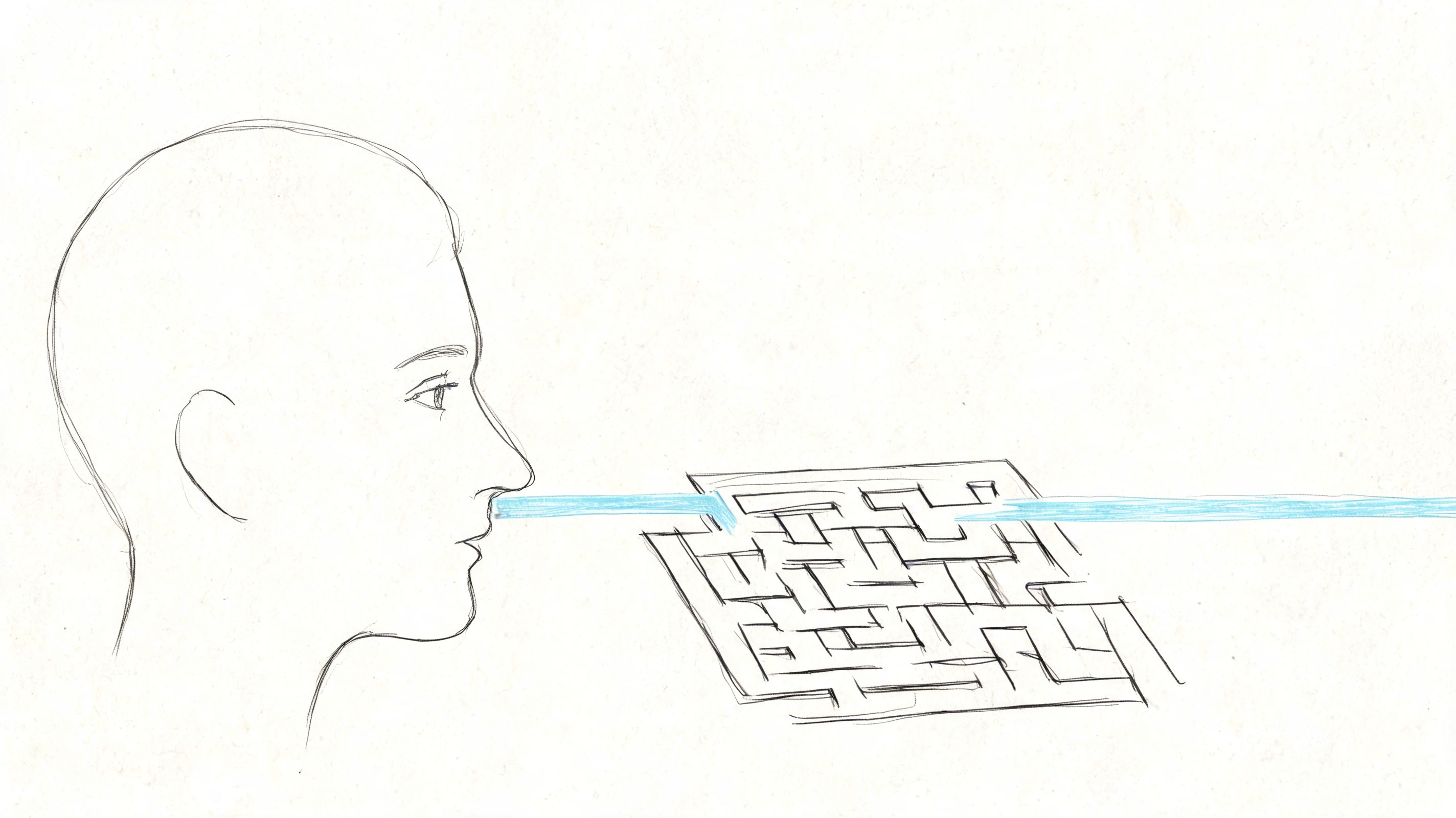
The core idea is straightforward. Authentication for an existing account shouldn’t depend on memory-based or transcription tasks when users sign in. This criterion exists to make authentication accessible, easy to use, and secure without forcing users through cognitive hurdles that many teams have treated as normal.
What the rule is really trying to prevent
A bad login flow behaves like an exam. It asks the user to remember exact credentials, move between devices, re-enter a code perfectly, or solve a puzzle before they can continue.
That burden falls hardest on people with cognitive disabilities, memory-related disabilities, dyslexia, anxiety-related processing challenges, and some motor disabilities. It also affects users in ordinary high-friction contexts, such as logging in on mobile, switching between apps, or trying to access an account quickly under stress.
This isn’t a mandate to weaken security. It’s a requirement to design authentication so security controls don’t depend on human memory or manual transcription where avoidable.
Scope matters
The W3C’s explanation clarifies an important point. The criterion applies to authentication of existing users, not account creation. It also allows mitigation patterns that many teams should already support, including password managers and pasting into fields.
That distinction helps avoid a common compliance mistake. Teams often spend time rewriting registration rules while leaving their login and MFA flows untouched, even though those flows create the actual barrier.
For organizations working through broader WCAG compliance services, this criterion usually connects with form behavior, validation, and security architecture, not just front-end styling.
Authentication should confirm identity, not test memory.
A practical example of why this matters
Products that serve communication and community features often need low-friction access because the account itself is the service. In spaces such as private messaging for disabled singles, an inaccessible login can block the very interaction the user came for. That’s why accessible authentication is not a niche requirement. It directly affects whether people can use the product at all.
Common Authentication Failures to Avoid
The most common failures under accessible authentication wcag 3.3.8 aren’t obscure edge cases. They’re patterns teams still ship because they sound security-conscious in a sprint review.
Here is one of the clearest visual summaries of the problem space.
Patterns that routinely create barriers
- Blocking paste in password or code fields: Teams do this to discourage credential sharing or manual copying. In practice, it interferes with password managers and forces transcription.
- Requiring manual entry of one-time codes: If the user must read a code from SMS, email, or an authenticator app and retype it, you’ve created a transcription task.
- Using CAPTCHA or puzzle challenges without a workable alternative: Visual puzzles, distorted text, and similar challenge-response patterns can create cognitive barriers.
- Breaking browser autofill: Missing or incorrect field semantics can prevent browsers and password managers from recognizing login fields.
- Forcing credential re-entry in a different format: Some flows ask users to type the same information again in a confirmation field or separate modal. That adds cognitive and motor effort with little user benefit.
A related form issue appears when labels and field associations are poorly implemented. If your inputs aren’t clearly named and exposed to assistive tech, the login flow becomes harder to complete and harder to recover from. This is exactly why every authentication review should also examine whether every form element has label.
Where automation falls short
Automated scanners can catch some supporting defects. They may flag missing labels, weak field semantics, or malformed HTML. They usually cannot determine whether the experience, as a whole, requires a cognitive function test.
That means a login page can pass a scanner and still fail users.
A short walkthrough helps make that point concrete.
CAPTCHA is often the wrong place to get clever
Security teams sometimes defend CAPTCHA because it sits at the boundary between abuse prevention and access control. But puzzle-based friction is a poor default if there’s no equivalent path that avoids the same cognitive burden.
If your stack still depends on challenge-based verification, review practical CAPTCHA accessibility alternatives before you finalize your next release. In many environments, a background risk signal or another non-puzzle control is a better answer than forcing users through a test they may not be able to complete.
Compliant Remediation Patterns and Techniques
The strongest remediation pattern is to reduce or remove the need for users to manage secrets with memory and manual entry. The most effective way to do that is WebAuthn with passkeys.
Auth0’s technical overview explains that passkeys use public-key cryptography, with a unique key pair for each site. The private key stays on the user’s device, and sign-in is completed with a biometric gesture or security key rather than a typed password or OTP. The same overview also notes other sufficient techniques, including allowing copy-paste, supporting password-manager autofill, and offering SSO in appropriate environments, as described in Auth0’s guide to WCAG 3.3.8 authentication without frustration.
What usually works best
There isn’t one universal architecture, but there is a practical hierarchy.
- Passkeys first when your platform supports them well
This is the clearest way to remove memory burden and reduce phishing exposure at the same time. For many products, this is the best long-term direction. - Email-link or similar passwordless flows for lower-friction access
If the user can authenticate by activating a link rather than typing credentials, you avoid a large part of the memory and transcription problem. - Traditional username and password with proper autofill support
Passwords aren’t banned. What fails is forcing users to rely on memory when assistive and mainstream tools could do the work. - SSO in enterprise environments
SAML and OIDC-based single sign-on can reduce repeated login friction, especially when the identity provider already supports accessible authentication methods.
Trade-offs technical leaders should evaluate
Passkeys can simplify the user experience, but they also affect enrollment, cross-device access, recovery, and customer support. A product team has to think beyond the happy path. What happens when the user changes devices, loses access to a platform account, or needs a fallback in a regulated environment?
Passwordless email links feel simple, but they can introduce dependency on inbox access and email timing. SSO reduces repeated prompts, but implementation quality varies by identity provider and customer environment.
The right decision usually depends on your user base and risk profile. What doesn’t work is keeping a fragile legacy login because changing authentication feels operationally expensive.
The best remediation is the one users can actually complete without remembering, retyping, or solving anything.
Baseline fixes that should happen even before a larger redesign
Even if a passkey rollout is months away, teams can remove obvious barriers quickly:
- Allow paste: Don’t intercept or block it in password and code fields.
- Preserve autofill behavior: Use standard HTML semantics so browsers and password managers can identify fields.
- Remove unnecessary confirmation steps: Don’t ask users to re-enter passwords or codes unless there is a strong reason.
- Offer alternative sign-in paths: If one method depends on transcription or device switching, provide another path.
Teams working through adjacent form issues should also review accessible forms, labels, errors, and validation, because authentication failures often compound when the underlying form implementation is weak.
Code-Level Examples for Accessible Login Forms
A lot of accessible authentication work starts with architecture, but small HTML decisions still matter. The most common code-level problem is simple. The form looks correct, yet the browser or password manager can’t reliably identify the fields.
Before and after example
Before
<form>

<div>
<label>User</label>
<input type="text" id="user" name="user" />
</div>


<div>
<label>Password</label>
<input type="password" id="pass" name="pass" onpaste="return false;" />
</div>

<button type="submit">Log in</button>
</form>
This version has several issues. The labels are not explicitly associated with their inputs using for. The field names don’t help autofill tools. Paste is blocked.
After
<form>

<div>
<label for="username">Email or username</label>
<input
type="text"
id="username"
name="username"
autocomplete="username" />
</div>


<div>
<label for="current-password">Password</label>
<input
type="password"
id="current-password"
name="password"
autocomplete="current-password" />
</div>

<button type="submit">Log in</button>
</form>
This version gives the browser and password managers the signals they need. It also avoids interfering with user input methods.
Essential autocomplete mapping
| Field Type | Autocomplete Value | Purpose |
|---|---|---|
| Username or email sign-in field | username | Helps browsers and password managers identify the account identifier |
| Current password field | current-password | Supports filling the correct stored password for sign-in |
| New password field | new-password | Signals password creation or reset flows rather than standard login |
If your team needs a broader implementation reference, review the autocomplete attribute input purpose guide.
Don’t separate authentication from error handling
Login forms often fail users twice. First, the authentication method creates friction. Then the form returns an error that isn’t announced clearly, isn’t tied to the right field, or disappears on refresh.
That’s why authentication reviews should include accessible error messages, especially for invalid credentials, expired links, and MFA failure states.
How to Test for WCAG 3.3.8 Conformance
You can’t validate this criterion with automation alone. Tools can inspect code. They can’t reliably judge whether the user was forced through a memory test or a transcription task as part of the actual sign-in journey.
Manual testing is where accessible authentication wcag 3.3.8 becomes real.
Manual test checklist
Use the live flow, not a mocked static page. Test the standard login, password reset, MFA step-up, and recovery path.
- Password manager test: Can a mainstream password manager or browser autofill the username and password fields correctly?
- Paste test: Can the tester paste into password and one-time code fields without interference?
- Alternative path test: If a CAPTCHA or challenge exists, can the user complete the process through a non-cognitive alternative?
- Keyboard test: Can the full authentication sequence be completed without pointer input?
- Screen reader test: Are field labels, instructions, and errors announced in a way that supports successful completion?
- Failure-state test: If the user enters invalid data, is the recovery path understandable and still accessible?
Test the flow, not only the form
Some teams validate the first page and stop. That misses where risk often hides. The problem may appear in a modal, a third-party identity step, a pasted code field, or an account recovery branch.
A useful review asks the tester to complete the journey in more than one way:
- With stored credentials and browser autofill.
- With copy-paste enabled.
- With keyboard and screen reader support.
- Through any fallback method the product claims is accessible.
A scanner may tell you the input has an autocomplete token. It won’t tell you whether the user was locked out by a code-entry pattern three screens later.
Why professional audits matter here
This is a good example of where automated checks create false confidence. They help, but they don’t replace manual review by people who understand assistive technology, form behavior, and identity flows.
If your organization needs defensible accessibility evidence for legal review, enterprise sales, or procurement, a manual audit is the reliable way to verify what happens in production.
VPAT Documentation and Procurement Considerations
Authentication is one of the first places enterprise buyers, government customers, and compliance teams will scrutinize a product claim. If your VPAT or ACR says the product supports WCAG 2.2, you need language that accurately reflects the actual sign-in experience.
What to document in a VPAT or ACR
When evaluating this criterion, document the specific authentication methods available and whether they avoid memory-based or transcription-based barriers. Include notes on fallback paths, password manager support, paste behavior, and any challenge-response mechanism.
A concise conformance statement often looks like this in practice:
- Supports: The product offers authentication methods that do not require users to rely on memory or manual transcription, or it provides accessible alternatives and preserves autofill and paste behavior.
- Partially Supports: One or more authentication paths remain dependent on manual code entry, blocked paste, inaccessible challenge steps, or third-party flows that have not been fully remediated.
Procurement questions worth asking vendors
Procurement teams should ask direct questions instead of accepting a generic “WCAG aligned” statement.
- Authentication methods: Which sign-in options are supported, such as passkeys, SSO, password manager autofill, and email-link login?
- Barrier checks: Does the login flow require manual re-entry of one-time codes or block paste in any field?
- Third-party dependencies: Are hosted identity screens, CAPTCHA services, or federated login providers included in the accessibility review?
- Evidence: Is the conformance claim backed by manual testing and current documentation?
This matters beyond sign-in pages. If your organization buys systems with account creation, payment, or re-authentication steps, review adjacent transactional paths such as this checkout accessibility guide and use a structured accessibility vendor questionnaire during procurement.
Frequently Asked Questions
Does WCAG 3.3.8 ban passwords
No. The issue isn’t the existence of passwords. The issue is forcing users to rely on memory or manual transcription when the flow could support autofill, password managers, paste, or another accessible method.
Does MFA automatically fail WCAG 3.3.8
No. MFA can be compliant or noncompliant depending on how it’s implemented. A factor that depends on manually reading and retyping a code creates more risk than a method based on passkeys, biometrics, push approval, or a security key.
Are passkeys enough by themselves
Passkeys are often the strongest pattern, but teams still need to think through enrollment, fallback access, and recovery. The primary method can be strong while the fallback path still creates barriers.
Does this criterion apply to account creation
No. As noted earlier, the criterion applies to authentication for existing accounts rather than the initial account registration step.
Is disabling paste ever a good idea
Not for accessibility. Blocking paste interferes with password managers and forces unnecessary manual entry. It’s a common anti-pattern that should be removed.
Can automated tools confirm conformance
Not by themselves. They can support the review, but they can’t determine whether the end-to-end authentication experience imposes a cognitive function test.
What should product teams fix first
Start with the highest-friction barriers. Remove blocked paste, restore autofill support, review code-entry steps, and evaluate whether passkeys or another passwordless method should become the preferred sign-in option.
If your team needs a defensible review of login flows, MFA, checkout, or enterprise procurement documentation, ADA Compliance Pros can help with manual accessibility audits, remediation guidance, and VPAT-ready reporting grounded in real testing rather than black-box automation.