

A common compliance failure starts with a page that looks polished. The layout is clean. Brand review passed. Engineering closed the release. Then legal gets a demand letter because the article uses vague link text, skips heading levels, buries key instructions in dense paragraphs, and publishes videos without equivalent text alternatives.
That’s the part many teams miss. Accessible content writing isn’t separate from ADA risk, WCAG conformance, or procurement readiness. It sits inside them. If users can’t understand your headings, identify your links, follow your instructions, or access your media, the problem isn’t only editorial. It affects task completion, support costs, conversion paths, and legal defensibility.
The standards history matters here. Accessible writing became a formal global standards topic with WCAG 2.0 in December 2008, then advanced through WCAG 2.1 in June 2018 and WCAG 2.2 in October 2023, which is why content structure and wording now sit squarely inside modern accessibility expectations under WCAG-based rules in major markets, as reflected in the W3C’s writing guidance for accessible websites.
Why Accessible Writing Is a Business Imperative
If your team still treats accessibility as a developer-only issue, content is probably your blind spot.
Writers, marketers, product managers, and CMS editors control many of the elements users interact with first. They choose headings, button labels, helper text, error messages, article structure, support content, PDF copy, and video summaries. Those choices affect whether a person can complete a task quickly or gets lost halfway through a flow.
For a product manager, this is a business issue in two directions. First, poor content can create exposure under ADA and WCAG-based expectations. Second, it can subtly damage revenue by making signup, checkout, onboarding, billing, and support harder than they need to be.
A useful outside perspective on this broader commercial impact is Baslon Digital’s guide on the importance of web accessibility for business. The core takeaway is simple. Accessibility doesn’t sit outside performance. It shapes whether people can use what you publish.
Content also affects discoverability. Clear headings, descriptive links, and understandable page copy help both users and search systems interpret the page. That overlap is one reason accessibility and content quality often move together, as discussed in this guide to accessibility and SEO.
Practical rule: If a page would confuse someone hearing it through a screen reader, scanning it on mobile, or reading it under time pressure, it’s not low-risk content.
What works is operational discipline. Teams that perform well usually stop debating whether plain language is “on brand” and start treating clarity as a release requirement. They define acceptable heading structures, ban vague link text, require useful alternative text, and make captions and transcripts part of publishing.
What doesn’t work is treating accessibility as a final sweep. By then, the page hierarchy is already set, the UI copy is already approved, and the media is already produced. Rework gets expensive, and teams start negotiating against the standard instead of meeting it.
The Three Pillars of Accessible Content
Accessible content writing works best when teams simplify it into a few repeatable standards. In practice, most issues fall into three buckets: structure, language clarity, and word choice.
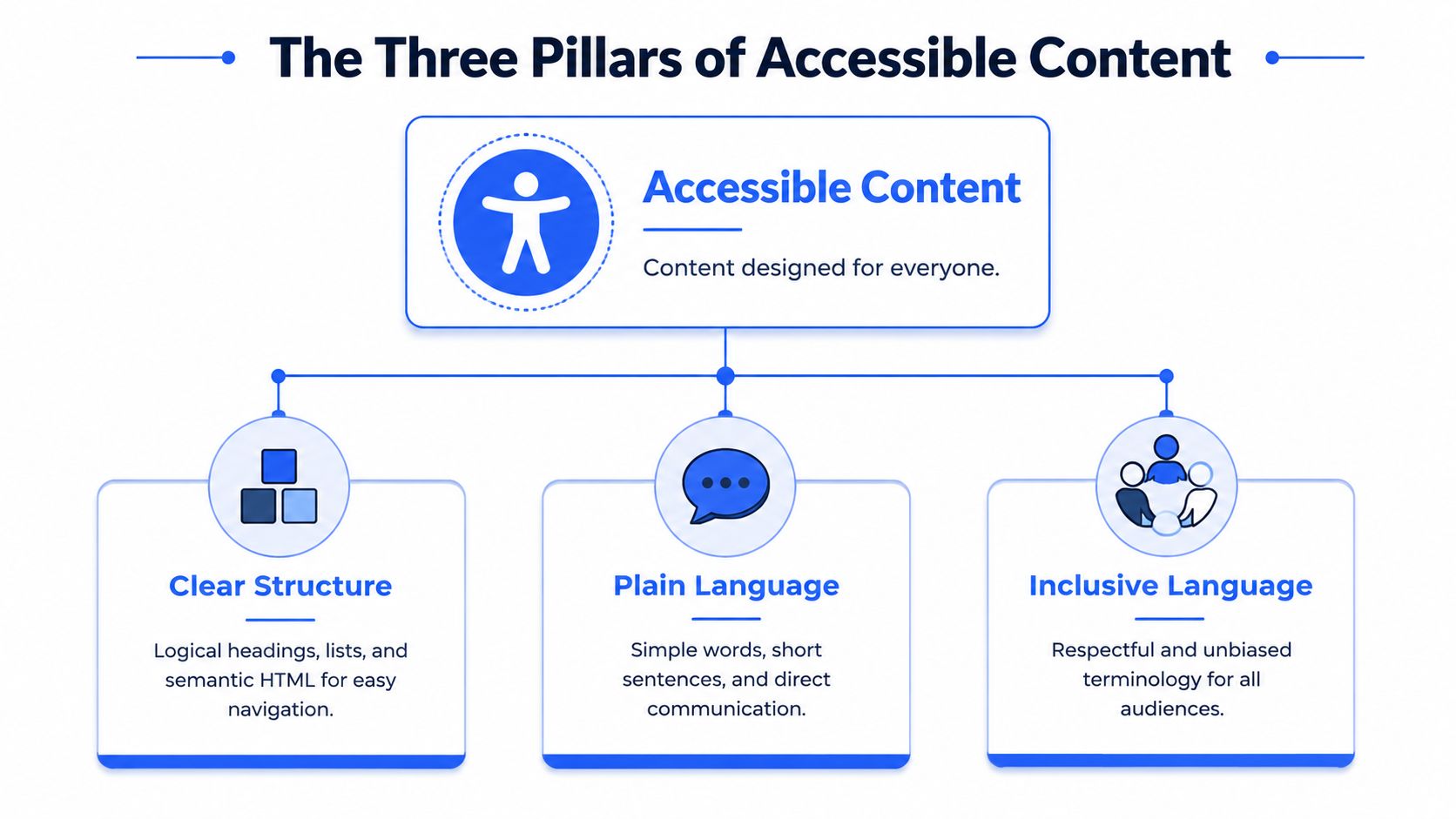
Clear structure
Structure is what lets people find their way before they read every word.
Screen reader users often move through a page by headings. Sighted users do something similar with scanning. If the page has one unique H1, a logical heading hierarchy, concise section labels, and lists where lists belong, the user can predict where to go next. If the page uses bold text as fake headings, skips levels, or groups unrelated points into a single block, the page becomes harder to parse.
This is why structure isn’t cosmetic. It’s navigational.
A strong structure usually includes:
- One clear H1: The page needs a single top-level topic.
- Logical H2 and H3 hierarchy: Headings should reflect actual sections and subsections.
- Front-loaded information: Put the most relevant point first.
- Lists for grouped items: Steps, requirements, and options should be easy to scan.
Plain language
Plain language is where many teams resist the hardest, because they mistake simplicity for oversimplification.
In accessible content writing, the goal isn’t to sound simplistic. The goal is to reduce unnecessary processing. A widely cited target is an 8th-grade reading level, with paragraphs kept to 3 to 4 sentences maximum, according to the A11Y Collective’s guidance on accessible writing standards and readability targets.
That matters for users with cognitive disabilities, dyslexic readers, low-vision users who magnify content, and anyone skimming on a phone between meetings.
What usually works:
- Short sentences: One idea at a time.
- Familiar words: Use the term your customer would use.
- Active voice: “Download the report” is clearer than “The report can be downloaded.”
- Short paragraphs: Dense copy pushes users out of the flow.
Shorter copy doesn’t automatically make content accessible. Clearer copy does.
What fails is compressing a complex concept into jargon. Enterprise teams do this constantly in pricing pages, setup docs, security summaries, and support articles. If the content assumes internal vocabulary, many users won’t recover.
Inclusive language
Inclusive language is often treated as a tone issue. It’s more than that. It affects trust, comprehension, and whether users feel the product was built with them in mind.
Good inclusive language avoids terms that stereotype, patronize, or depend on one physical sense. It also avoids instructions like “click the button on the right” or “see the red warning,” which assume a specific way of perceiving the interface.
Instead:
- Name the control itself: “Select Continue.”
- Use neutral, direct wording: Focus on the action, not the user’s limitation.
- Avoid insider shorthand: Expand acronyms on first use when needed.
For B2B teams, inclusive language also reduces support friction. If your interface copy is respectful and unambiguous, fewer users hesitate, fewer users guess, and fewer users abandon the task.
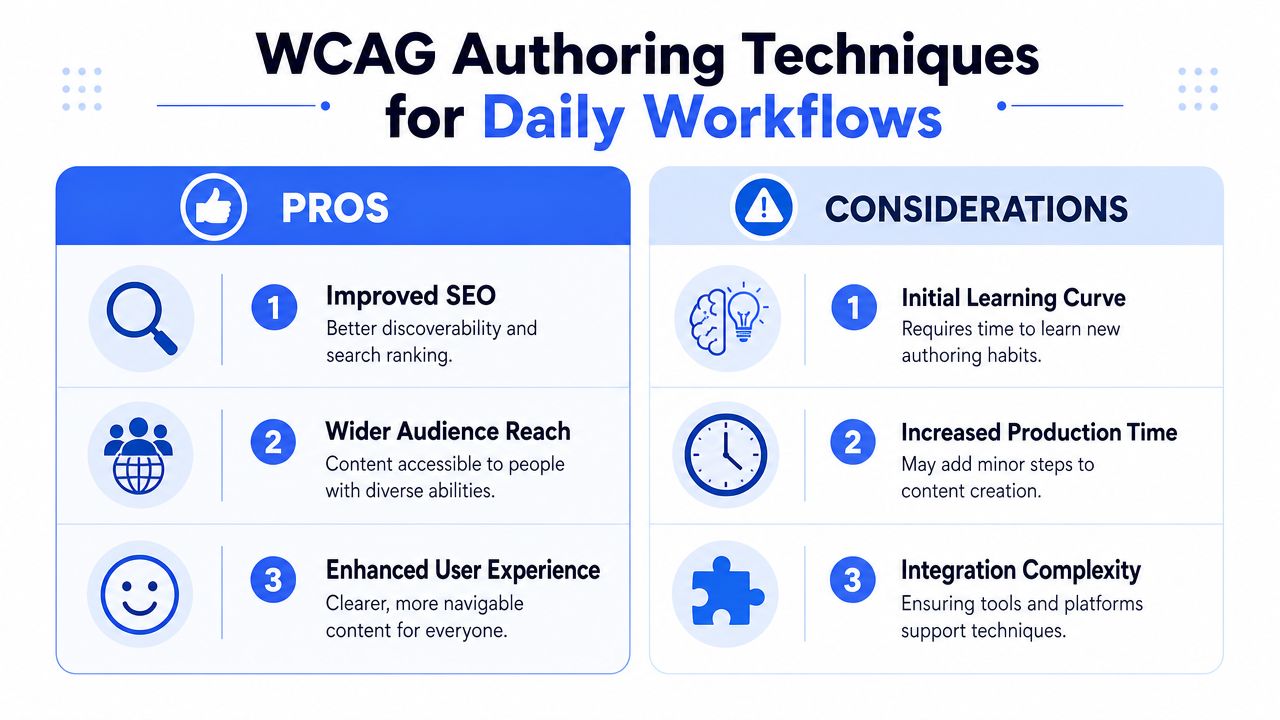
WCAG Authoring Techniques for Daily Workflows
Good intentions don’t survive production without authoring rules that writers can apply every day. The most reliable content teams convert WCAG into habits inside the CMS, design system, editorial checklist, and review process.
Headings that work as navigation
Headings are not styling choices. They are page landmarks.
WCAG-oriented authoring guidance emphasizes informative page titles, meaningful alt text, and captions or transcripts for multimedia. It also warns against visual formatting tricks that look fine but create comprehension barriers, including skipped heading levels and justified text, as outlined in WCAG authoring guidance for content creators.
Use headings to form a real outline:
- Use one unique H1: Match the page’s core purpose.
- Don’t skip levels: If a section is an H2, its child sections should start at H3.
- Keep headings descriptive: Users should know what follows without reading the next paragraph.
- Avoid fake headings: Bold text alone won’t create navigable structure.
Before
Benefits
Lots of copy follows, then a bold line for Pricing, then another bold line for Security.
After
H1 Product Overview
H2 Benefits
H2 Pricing
H2 Security
Link text that makes sense out of context
Screen reader users often review links as a list. If every link says “learn more” or “read more,” the list becomes useless.
Writers should describe the destination or action, not the mechanic of clicking.
Before
Click here for our WCAG checklist.
After
Review our WCAG compliance checklist.
Before
Read more about PDFs.
After
Learn how to make a PDF accessible step by step.
A few rules solve most link problems:
- Describe the destination: Tell users where the link leads.
- Keep repeated links distinct: Don’t use the same text for different URLs.
- Avoid raw URLs in body copy: They add noise and often fail when read aloud.
- Front-load key words: Put the important part first.
Alt text that serves a purpose
Alt text should communicate the image’s purpose in context. That’s the standard worth teaching internally.
If the image supports a product claim, the alt text should reflect that purpose. If the image is decorative, it shouldn’t compete for attention. If the image contains important information, that information needs a text equivalent.
A practical internal rule is this: ask what a user would miss if the image disappeared.
Before
alt=“image”
alt=“team-photo-final.png”
After
alt=“Dashboard showing open support tickets by priority”
alt="" for a decorative divider
For teams that need a deeper rule set, use a dedicated guide on when images need alt text or should be decorative.
Captions transcripts and page titles
Multimedia and metadata often break otherwise solid content.
Page titles help users orient when a new page loads. Captions help users who are deaf or hard of hearing follow spoken content. Transcripts help users who prefer text, need searchability, or can’t reliably access audio. These are not edge requirements. They affect usability in common business contexts like webinars, demos, training libraries, and support centers.
Before
Page title: Home
Video embedded with auto captions only
No transcript
After
Page title: Pricing and Plans
Edited captions published with the video
Transcript placed near the media
If your team publishes training videos, product explainers, or recorded events, build that work into the production cycle instead of adding it after launch. This companion guide on video accessibility with captions and transcripts is useful for setting those requirements.
How to Test Your Content for Accessibility
Writers and product managers don’t need to become auditors to catch major content failures. They do need a reliable manual check before release.
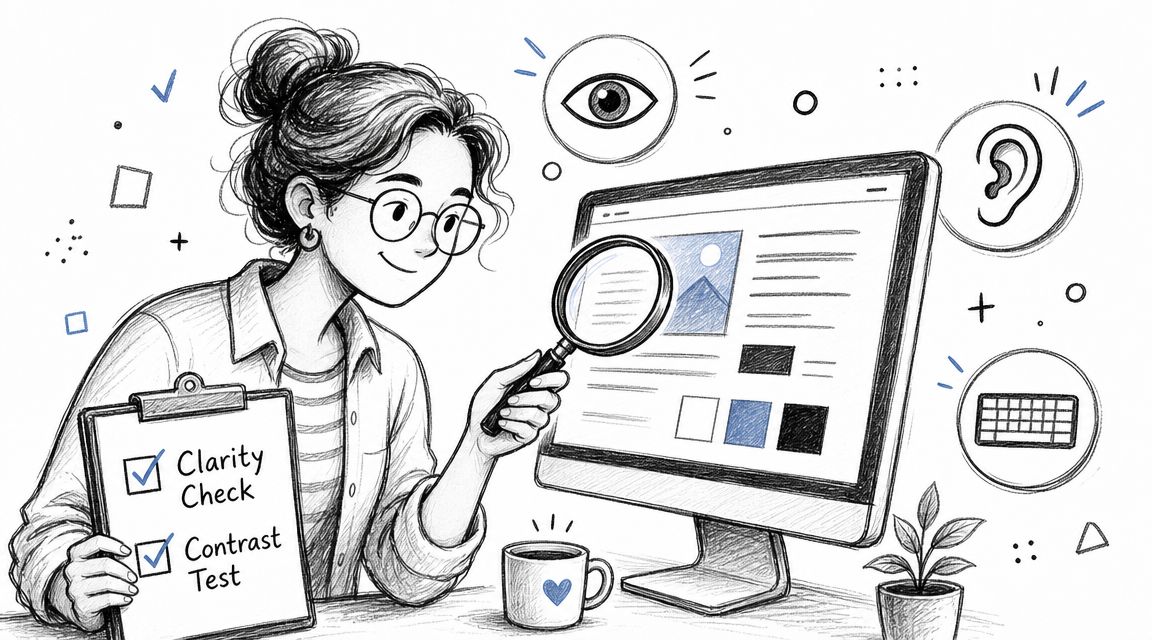
A five minute manual check
Start with the page itself, not the scanner score.
Use this simple pass:
- Read only the headings: Do they form a logical outline?
- Tab through the links and controls: Can you tell where each one goes or what it does?
- Zoom to 200 percent: Does the text remain readable and usable?
- Listen to the page with a screen reader: On macOS, VoiceOver is built in. On Windows, NVDA is a common choice.
- Check media equivalents: If there’s audio or video, can a user access the same information in text?
This is also a good point to formalize issue reporting. A lightweight template prevents vague bug tickets like “page is not accessible.” Use a structured workflow such as this accessibility bug report template so content, design, QA, and engineering can assign and fix issues cleanly.
What you’re looking for is not theoretical perfection. You’re checking whether meaning survives when presentation changes. If the page only works when seen exactly as designed, it’s fragile.
What automation catches and what it misses
Automated tools are useful. They are not enough.
The WebAIM Million found detectable WCAG 2 failures on 95.9% of the top one million home pages in 2026, at an average of 56.1 errors per page — and those are only the failures a scanner can see. W3C WAI is direct about the ceiling: “no tool alone can determine if a site meets accessibility standards”. That is why a defensible program combines automated checks, manual expert review, and user testing in an iterative loop.
That gap matters because many content issues require judgment:
- A scanner can flag a missing alt attribute. It can’t tell whether the replacement text is useful.
- A scanner can detect links. It often can’t judge whether the link text makes sense out of context.
- A scanner can see heading tags. It can’t always tell whether the hierarchy matches the information architecture.
- A scanner can check for captions mechanically. It won’t evaluate whether they accurately reflect the spoken content.
Here’s a quick visual primer your team can use during reviews:
When the content matters for sales, onboarding, support, regulated disclosures, or procurement documentation, manual review is the safer path. Teams often use browser extensions, CMS checkers, and contrast tools for triage, then move high-risk templates and user flows into a manual audit. That can include firms such as ADA Compliance Pros, which performs WCAG-mapped manual testing and remediation guidance as part of broader accessibility audit work.
Building a Governance and Remediation Plan
Accessible content writing doesn’t stay fixed through goodwill. It stays fixed when the rules live where teams already work.
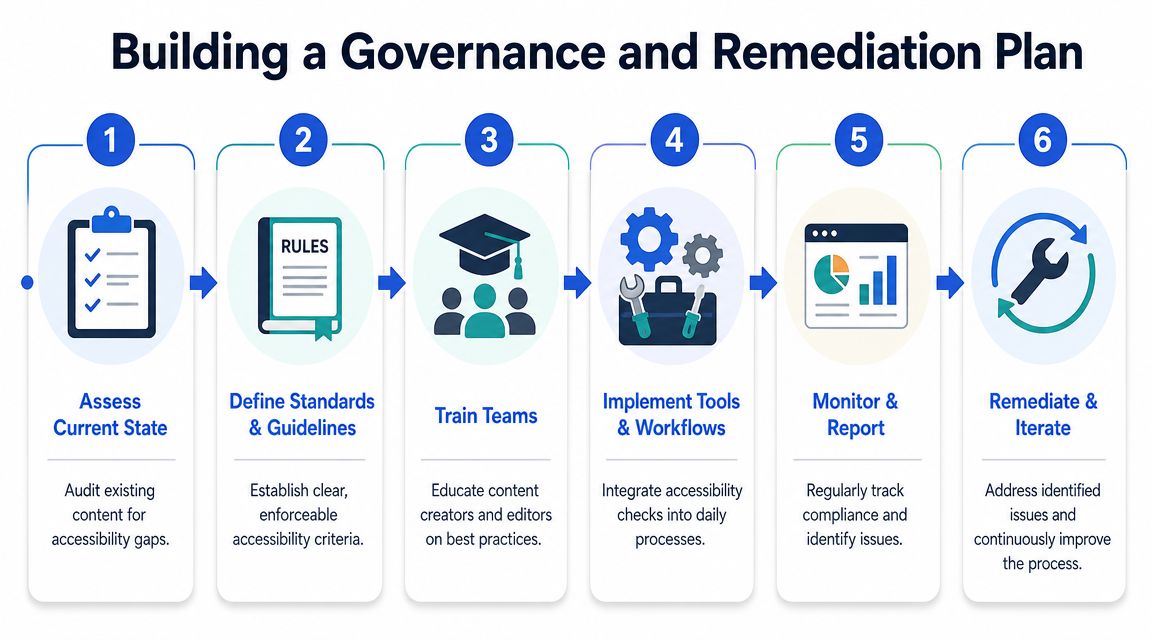
Set rules inside the style guide
Most organizations already have a content style guide. The problem is that accessibility guidance usually sits somewhere else, so writers treat it as optional.
Merge the two. Put accessibility requirements directly into the editorial standard:
- Headings: One H1, logical hierarchy, no skipped levels.
- Links: No “click here” or generic “read more.”
- Paragraphs: Keep them short and scannable.
- Acronyms: Spell them out on first use.
- Media: Require captions, transcripts, and review of alt text.
- Formatting: Ban justified text and other readability-hostile patterns.
This matters across channels, not only web pages. The same governance should extend to CMS templates, downloadable documents, marketing emails, and embedded media. If you manage multiple formats, related workflows often intersect with WordPress ADA compliance, email accessibility checklists, and document remediation standards.
Prioritize by risk not by opinion
Teams often ask where to start when everything needs cleanup. The answer isn’t “fix the homepage first” by default. It’s “fix the highest-risk content first.”
A simple prioritization model works well:
| Content type | Why it moves up the queue | Typical examples |
|---|---|---|
| Critical task flows | Affects conversion or service completion | signup, checkout, payment, scheduling |
| Legal or regulated content | Raises compliance exposure | disclosures, account terms, benefits info |
| High-traffic support content | Reduces user failure and support load | FAQs, help center articles, onboarding docs |
| Media-heavy assets | Often missing equivalents | webinars, demos, training videos |
| Legacy long-tail content | Important, but usually lower urgency | old blog posts, archived campaigns |
Fix the pages where misunderstanding costs the user something first. Time, money, access, or legal rights.
That approach also gives compliance teams a defensible rationale. You can show how issues were identified, ranked, assigned, remediated, and retested instead of claiming everything was “reviewed” in a vague sweep.
Add guardrails for AI and dynamic content
Many mature teams still get exposed in this area.
Accessibility failures often come from context loss in dynamic content. AI-generated summaries can omit essential instructions, and personalized dashboards can change link meaning, which is why more automation can create more risk unless teams use content guardrails and human review for high-risk messages, as discussed in UX Content’s guide to accessible UX writing and inclusive content design.
Operationally, that means setting boundaries such as:
- Approved vocabularies: Keep core actions and labels consistent.
- Fallback copy: Define what appears when personalized content fails.
- Human review triggers: Require review for billing, consent, healthcare, financial, or legal messaging.
- State-based testing: Check dynamic text across empty, error, success, and edge-case states.
What doesn’t work is assuming an LLM or CMS rule will preserve meaning automatically. Dynamic systems often rewrite the exact text users rely on most.
Frequently Asked Questions on Accessible Content
What is the difference between alt text captions and transcripts
They solve different access problems.
Alt text gives a text alternative for an image. It should communicate the image’s purpose in the page context.
Captions provide synchronized text for spoken content and relevant audio in video. They help users follow the media as it plays.
Transcripts provide a text version of audio or video content. They help users who prefer reading, need searchability, or can’t reliably use audio playback.
A common mistake is assuming one can replace the others. It usually can’t. A transcript doesn’t replace image alt text. Captions don’t explain the function of a chart embedded elsewhere on the page.
How do you make tables and charts more accessible
Start by asking whether the table or chart is the best format for the task.
For tables, keep the structure simple. Use real table markup, clear headers, and a logical reading order. Avoid merging cells unless there’s a strong reason. If the table contains dense operational or financial information, add a short lead-in that explains what the user is looking at and why it matters.
For charts, don’t leave the meaning trapped in the visual. Provide a concise summary in nearby text. If the chart carries important detail, include a fuller explanation below it. Color alone should never carry the only distinction between values or categories.
If a chart supports a decision, the takeaway needs to exist in text, not only in the graphic.
Can automated tools check accessible content writing
They can help. They can’t provide complete coverage.
Automated tools are useful for catching obvious issues such as missing attributes, low contrast in some contexts, or structural errors in markup. They are good for triage and repeatable QA. They are weak at evaluating meaning.
They don’t reliably answer questions like:
- Is this heading descriptive
- Does this link make sense by itself
- Does this alt text reflect the image’s purpose
- Does the transcript capture the information users need
- Do the instructions still work when the interface changes state
That’s why automated testing should feed a broader review process, not replace it. If your organization needs stronger legal defensibility, procurement-ready documentation, or a trustworthy remediation plan, consider a professional WCAG compliance audit and, where vendor documentation is involved, request a VPAT or related assessment workflow.
If your team needs help turning accessible content writing into a repeatable process, ADA Compliance Pros can support audits, remediation planning, WCAG-based reviews, and procurement-ready documentation for websites, applications, documents, and media.