

Your team probably already has bug tickets that look complete on the surface but still don’t get fixed cleanly. The title says “form field issue.” The description says “screen reader problem.” Someone attaches a screenshot. Engineering asks for repro steps. QA asks which browser. Legal asks whether the issue affects WCAG conformance. Product asks whether it blocks a critical flow. Nobody gets a straight answer, so the ticket bounces around and the same defect survives another release.
That’s why an accessibility bug report template matters. Not because teams need more paperwork, but because they need tickets that are actionable for developers, reviewable by QA, understandable to product, and defensible if a customer, auditor, or procurement reviewer asks what was found and what was done about it. A good ticket reduces rework. A defensible ticket also creates a record of due diligence.
Why Vague Bug Reports Create Risk and Inefficiency
A ticket that says “the login button is broken” creates work, not clarity. Engineering has to ask whether it’s broken for mouse users, keyboard users, or screen reader users. QA has to determine where it happened, how to reproduce it, and whether it occurs consistently. Product has no way to tell whether it’s a minor annoyance or a release blocker.
An accessibility ticket has to do more than identify a visual defect. It needs to identify the user barrier, the technical failure, and the compliance implication. If it doesn’t, the ticket may still enter the backlog, but it won’t be ready for remediation.
That’s where defensibility comes in. A defensible report gives your organization an auditable record showing what was found, where it appeared, who it affected, how severe it was, and what standard it failed. That record matters internally for triage and externally for procurement reviews, complaints, and legal scrutiny.
Harvard University’s Accessibility Issues Tracker helped formalize this approach around 2022 by standardizing severity ratings and combining automated results with manual testing. Their model addressed the reality that an estimated 70-80% of accessibility issues went untracked before 2020 due to inconsistent reporting, and adoption of that model reduced remediation time by an average of 40% in higher education according to Harvard’s reporting guidance.
What weak tickets leave out
Most weak tickets fail in one of these ways:
- No impacted user group: The ticket names a UI bug but never states who is blocked.
- No test context: There’s no browser, OS, device, or assistive technology listed.
- No standard mapping: Nobody ties the issue to WCAG, so compliance teams can’t use it later.
- No evidence: The report relies on opinion instead of observable behavior.
- No business framing: Product can’t tell whether the issue affects login, checkout, onboarding, or a low-traffic settings page.
Practical rule: If a developer can’t reproduce the problem and a compliance lead can’t cite the failed requirement, the ticket is incomplete.
Teams that want to tighten reporting standards should also look at general documentation discipline, because the same habits apply. A concise guide for effective technical docs is useful here. Good bug tickets behave like good documentation. They define context, remove ambiguity, and make the next action obvious.
The Anatomy of a Defensible Accessibility Bug Report
A strong accessibility bug report template should work in Jira, Azure DevOps, GitHub Issues, Notion, or even a spreadsheet. The system matters less than the fields. What matters is whether the record gives engineering enough detail to fix the issue correctly on the first pass and gives compliance teams enough detail to defend the remediation process later.
If your team needs a baseline for testing and issue identification before tickets are filed, use a structured process such as this guide on how to test digital accessibility on your website. Better inputs produce better tickets.
Core Fields of an Accessibility Bug Report Template
| Field | Purpose | Example |
|---|---|---|
| Issue ID | Tracks the finding across audit, backlog, retest, and closure | A11Y-104 |
| Title | States the barrier clearly and specifically | Checkout submit button is not reachable by keyboard |
| Affected page or screen | Identifies where the issue occurs | /checkout/payment |
| Component or element | Narrows the fix target | Payment form submit button |
| Environment | Shows test conditions | Chrome on Windows, keyboard only, NVDA |
| Reproduction steps | Lets dev and QA recreate the failure | Tab through payment form to submit action |
| Expected result | Defines compliant behavior | Keyboard focus reaches button and visible focus indicator appears |
| Actual result | Records observed failure | Focus skips button entirely |
| Impacted users | Connects issue to disability impact | Keyboard-only users and some screen reader users |
| WCAG success criterion | Ties issue to conformance requirement | WCAG 2.2 SC 2.1.1 Keyboard |
| Severity | Helps triage and remediation order | High |
| Recommendation | Gives direction without being vague | Use native button semantics and ensure tabindex order follows DOM |
| Evidence | Supports verification and defensibility | Screenshot, short video, AT notes |
| Status and retest result | Closes the loop | Fixed, retest passed |
Start with a title that identifies the barrier
A weak title says, “Form issue on checkout.”
A useful title says, “Checkout submit button is not reachable by keyboard.”
The second version does three things immediately. It identifies the page context, the affected element, and the access barrier. That gives product enough information to recognize risk and gives engineering a starting point without opening the full ticket.
Include the environment and affected assistive technology
Accessibility bugs are often environment-specific. A control may behave one way in Safari with VoiceOver and another way in Chrome with NVDA. If you don’t record the environment, you’ll get the familiar response: “Could not reproduce.”
Include:
- Platform details: Operating system, browser, and device type.
- Input method: Keyboard only, touch, switch access, speech input, screen reader.
- Assistive technology: NVDA, JAWS, VoiceOver, TalkBack, or another tool used during testing.
- Build or release version: Especially important for SaaS teams with frequent deploys.
Write reproduction steps that remove guesswork
Many tickets collapse. For instance, “Try to submit the form” is not a reproducible instruction.
Use short, objective steps:
- Go to the payment page while signed in.
- Press Tab from the card number field.
- Continue tabbing through the form controls.
- Observe whether keyboard focus reaches the submit button.
- Attempt to activate the button with Enter or Space.
Good repro steps avoid interpretation. They tell the next tester exactly what to do and what to observe.
A ticket is ready for assignment when a tester who didn’t find the bug can still reproduce it from the written steps alone.
Document expected result, actual result, and WCAG mapping
These three fields turn a bug ticket into compliance documentation.
Expected result should describe accessible behavior, not subjective preference.
Example: “All interactive elements in the payment form are reachable and operable using only a keyboard.”
Actual result should describe the failure in plain language.
Example: “Keyboard focus skips the submit button, and the button cannot be activated without a mouse.”
WCAG mapping should name the specific criterion. This is the difference between “there’s a usability problem” and “this is a documented conformance failure.” For accessibility governance, VPAT support, and procurement reviews, that distinction matters.
At minimum, map each issue to the relevant WCAG success criterion and level. If the issue also affects an internal policy, design system rule, or accessibility acceptance criterion, record that too.
Add remediation guidance without writing the code for the team
A recommendation should help the implementer locate the problem and understand the intended outcome. It shouldn’t read like “fix accessibility issue.”
Useful guidance often includes:
- What to inspect: Semantic element choice, ARIA usage, focus order, label association, error handling.
- What success looks like: Keyboard operability, programmatic name, visible focus, announced state.
- Where to look: Component library source, custom script controlling focus, modal trigger logic, form validation pattern.
For example, instead of “add ARIA,” write: “Use a native <button> for the submit control or ensure the custom control exposes button semantics, receives keyboard focus, and responds to Enter and Space.”
That level of specificity reduces rework without locking the engineer into one implementation path.
How to Assign Severity and Prioritize Business Impact
Not every accessibility issue belongs in the next release. Some do.
The mistake teams make is treating severity like a vibe. One lead says it’s medium because the page still renders. Another says it’s critical because it affects a required flow. Without a shared model, severity becomes negotiable, and that’s where important issues stall.
A 2023 ACM analysis of 1,246 accessibility bugs in the Chromium repository found that 28% were closed as invalid or duplicates due to poor reporting, and 35% of mobile accessibility bugs were mis-prioritized, delaying fixes by 2-3 times compared to functional bugs, according to DigitalA11Y’s summary of the research. Mis-prioritization isn’t just a backlog problem. It directly slows remediation.
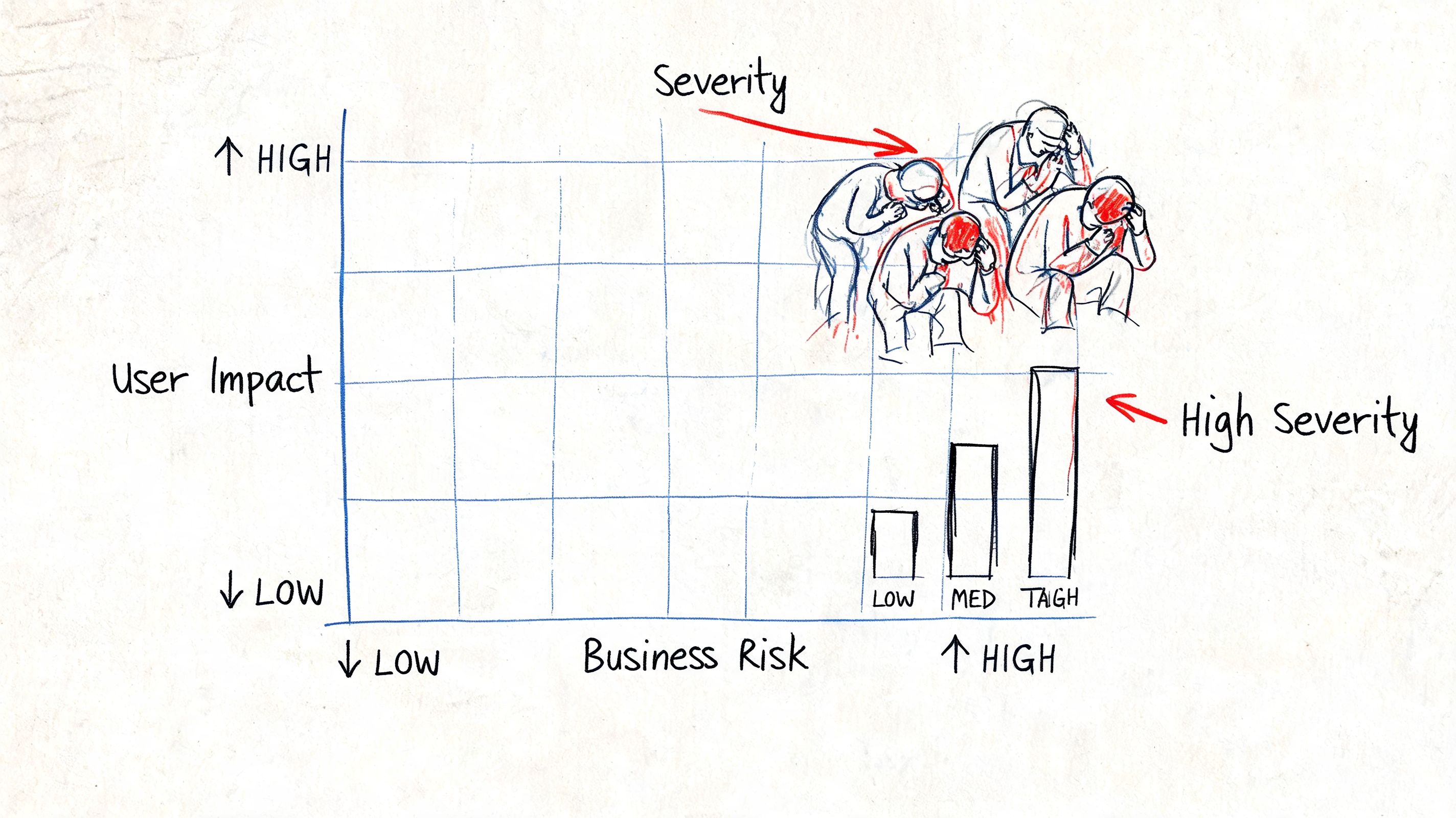
Use a matrix instead of gut feel
A practical severity matrix uses two axes:
| User impact | Business context | Likely severity |
|---|---|---|
| Blocks completion of a core task | Login, checkout, enrollment, application, account access | Critical |
| Creates major friction in an important task | Search, navigation, forms, document access | High |
| Causes confusion or extra effort with workaround available | Secondary workflows or non-core interactions | Medium |
| Cosmetic or low-impact issue with limited usability effect | Supplemental content or enhancement-level issue | Low |
This model is similar in spirit to Harvard’s structured severity approach, where content criticality and usability impact determine the rating. That’s the right direction for many organizations because it aligns engineering effort with actual user harm and organizational exposure.
Practical severity definitions
Critical
Use this when the defect blocks a user from completing a core business function. A keyboard trap in checkout, a login form that can’t be submitted without a mouse, or a document viewer that prevents screen reader access to required content belongs here.
High
The user can continue, but the experience breaks down in a major way. Think missing form labels in a registration flow, unlabeled controls in account settings, or a modal that moves focus unpredictably and causes disorientation.
Medium
There’s a real issue, but a workaround exists and the task remains possible. This might include weak heading structure on a secondary page or link text that is ambiguous in a limited context.
Low
Reserve this for issues with limited immediate impact. Don’t use “low” as a parking lot for anything inconvenient to schedule.
Severity should answer one question. If this issue ships unchanged, how much harm does it create for disabled users in a meaningful business flow?
A good severity decision also helps legal and compliance teams. When your ticket history shows that blockers were identified, ranked, assigned, and verified using a consistent standard, your remediation record is much easier to defend.
Capturing Evidence with Screenshots and Assistive Technology
Evidence is what separates a credible accessibility finding from an argument in a comment thread. If the ticket only says “screen reader reads this wrong,” the team still has to interpret what “wrong” means. If the ticket includes visual proof, assistive technology output, and exact context, the discussion gets shorter and the fix gets cleaner.
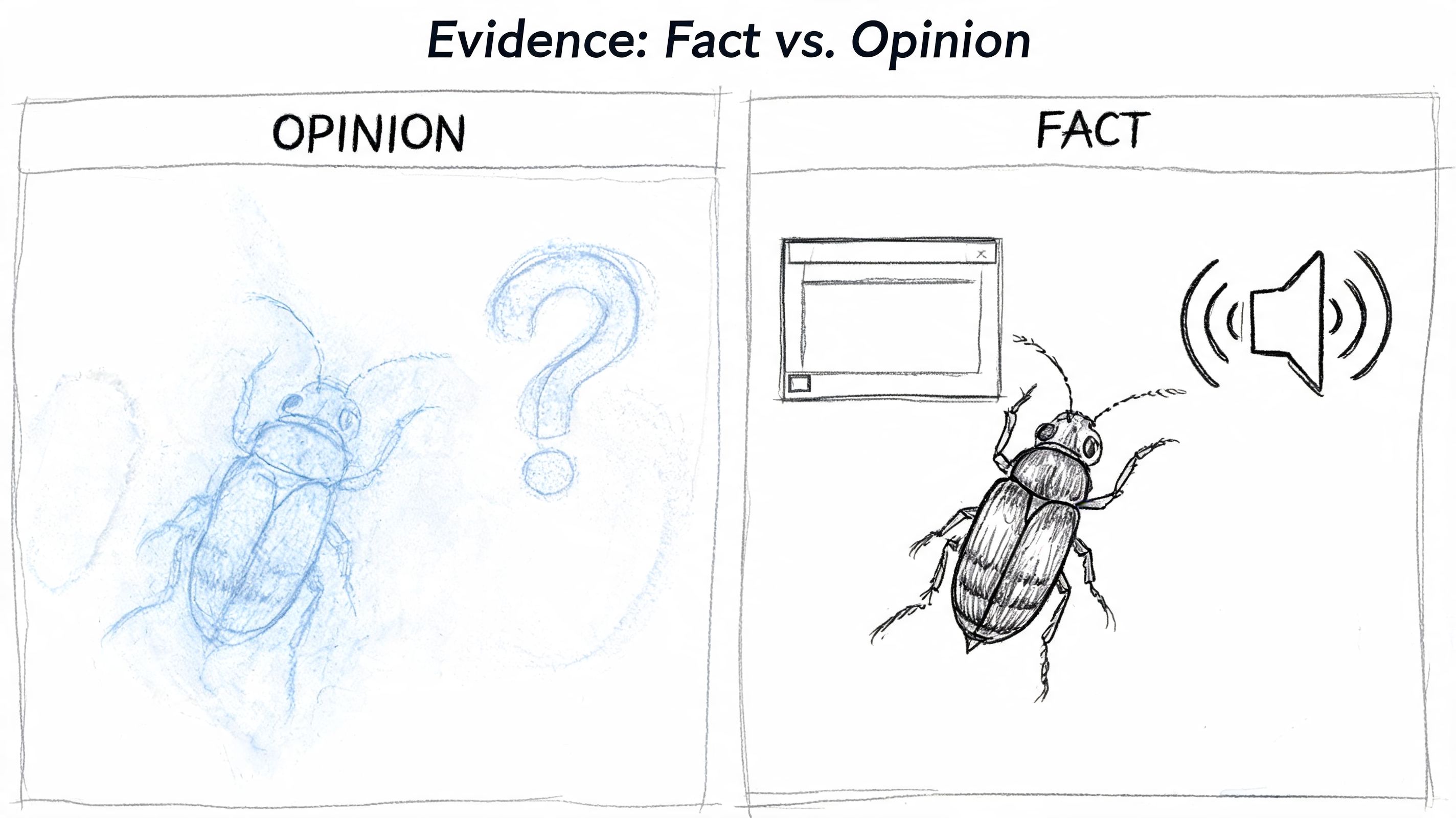
A 2025 Deque report found that 62% of UX teams abandon accessibility reporting due to non-intuitive formats, while a Usersnap study found that visual bug reports with screenshots and context can cut developer-designer miscommunication by 55%, according to Usersnap’s bug reporting article. That is consistent with practical observations. Vague text slows everyone down.
What visual evidence should show
A screenshot helps only if it answers a question.
Use annotated screenshots that clearly identify:
- The element in question: Outline the exact button, field, icon, link, or modal.
- The state of the interface: Open menu, focused control, validation error, expanded accordion.
- The missing behavior: Absent focus indicator, clipped text, hidden label, off-screen error message.
If your team needs repeatable screenshot capture for environment checks or workflow automation, a tool like a screenshot API can help standardize images across test runs.
A short recording is often better than a still image when the failure involves motion or timing. Focus loss after modal open, keyboard traps, carousels that auto-advance, and error handling after form submission are good examples. Record only enough to show the failure and the steps leading to it.
What assistive technology evidence should include
Visual proof is only half the record. Accessibility bugs often depend on how assistive technology interprets the interface. Include concise notes about what the tester heard or experienced.
For example:
- Screen reader output: “NVDA announces ‘button’ with no accessible name.”
- Keyboard path: “Tab order skips from card expiry field to footer links.”
- Speech input issue: “Voice control cannot activate the control because the visible label and accessible name do not match.”
- Switch or focus issue: “Focus enters modal but cannot reach close control.”
If your team needs a shared reference for terms and device categories, this assistive technology glossary is a useful baseline.
Record what the user experiences, not just what the DOM appears to do.
A quick visual walkthrough can also help teams align on what “good evidence” looks like before they start filing tickets at scale.
Integrating Bug Reports into Your Remediation Workflow
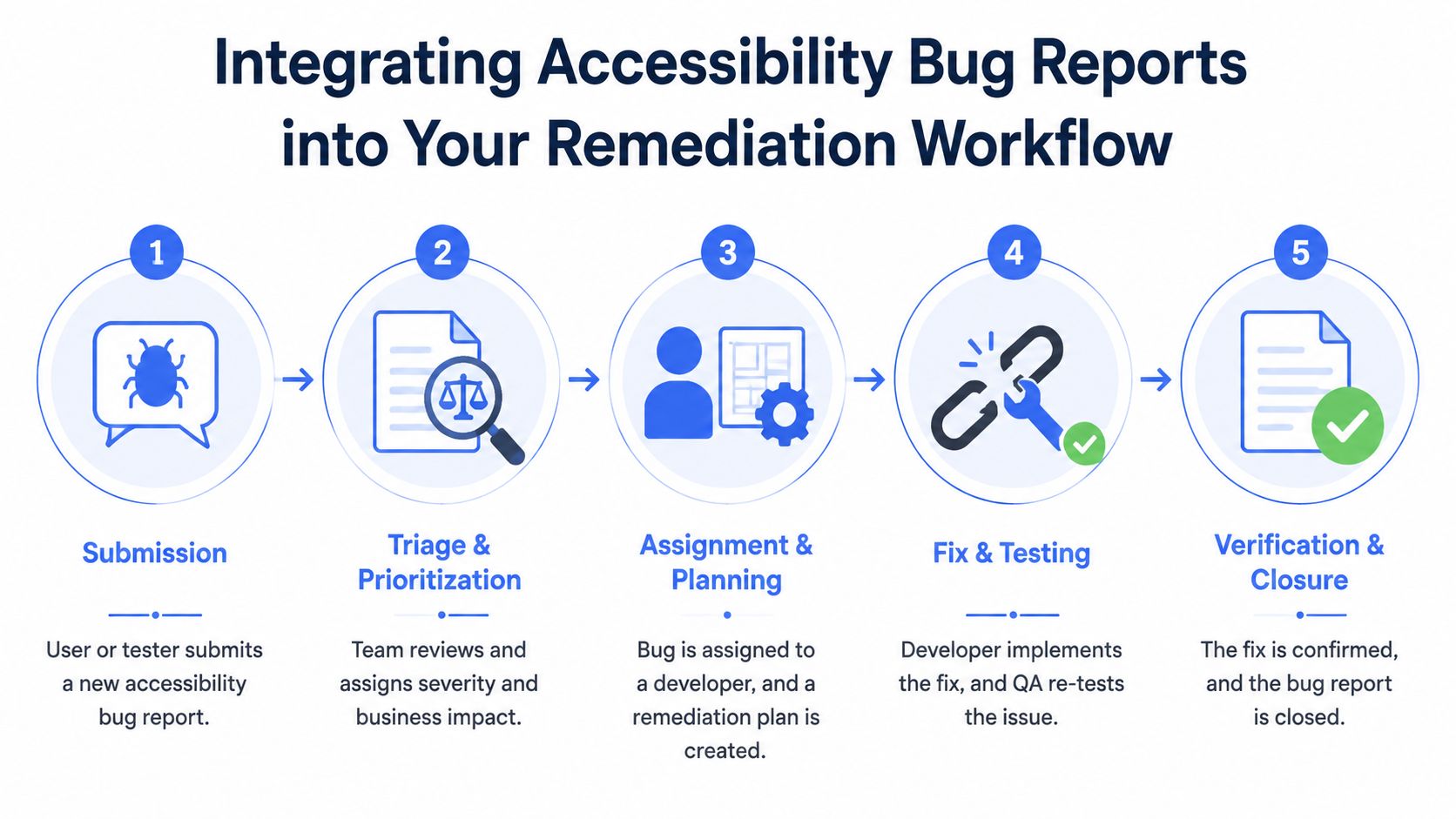
A strong accessibility bug report template won’t help if it dies in intake. Teams need a workflow that moves the issue from discovery to verified fix without losing context.
High-fidelity templates work best when they’re part of a prioritized roadmap. The mechanism is unglamorous: a finding that names the exact URL, the exact element and the exact assistive technology behaviour can be handed to a developer as work, whereas a conformance summary that says a criterion “partially supports” has to be re-investigated before anyone can start. An ACR is a procurement artefact and a bug report is an engineering one; asking either to do the other job is where remediation programmes stall.
A five-stage workflow that closes the loop
- Intake and completeness review
Every submitted ticket should be checked before it enters the engineering queue. If it lacks a page URL, repro steps, WCAG mapping, severity, or evidence, send it back for completion. Governance commences with this step. - Triage and prioritization
Product, accessibility, and engineering should quickly confirm severity, affected scope, and remediation owner. If the issue affects a shared component, track the component fix and the downstream instances separately. - Assignment and planning
Assign the ticket to the engineer or team that owns the code, not just the page. A page-level issue caused by a design system component should go to the component owner. Teams trying to streamline intake from customer support to engineering can benefit from patterns for automate support ticket to bug tracking, especially when accessibility complaints originate outside the dev backlog. - Remediation and implementation
Developers should use the ticket as the source of truth for the barrier, expected behavior, and success criteria. If they need role-based practice on turning findings into code changes, this article on how teams fix digital accessibility fast is useful for operational planning. - Verification and closure
QA or accessibility reviewers should retest against the original bug report, not just the engineer’s summary. Confirm that the issue is fixed in the documented environment and that the change didn’t create a related regression.
Where teams usually break the process
The most common breakdowns are operational, not technical.
- Tickets enter engineering half-formed: Developers waste time chasing context.
- Severity is changed informally: Critical issues drift downward because no one owns prioritization discipline.
- Fixes are marked done without retest: The problem reappears in the next release.
- Audit findings and production tickets stay disconnected: Compliance teams can’t prove what was remediated.
The workflow should produce two outcomes at the same time. A resolved user barrier and a defensible record of how the team handled it.
That second outcome is what makes the process procurement-ready. It supports internal audit trails, vendor reviews, and future VPAT or ACR work because the organization can point to exact findings, actions, and verification results.
Frequently Asked Questions About Accessibility Reporting
What makes an accessibility bug different from a standard functional bug?
An accessibility bug has to identify the barrier for disabled users, not just the feature failure. That means the ticket should include the impacted user group, assistive technology or input method, the observable failure, and the related WCAG criterion. A standard bug might stop at “button does not work.” An accessibility ticket needs to explain for whom it doesn’t work and why that matters.
Should every accessibility ticket include a WCAG reference?
Yes, if the issue is being tracked as a compliance-relevant defect. WCAG mapping turns a generic usability complaint into documented conformance evidence. That’s useful for engineering, QA, legal review, procurement, and VPAT support.
Can automated tools generate enough information for the ticket?
Automated tools are useful for initial detection, but they don’t replace manual evaluation. They can flag some code-level patterns, but they won’t reliably describe user impact, keyboard behavior, screen reader output, focus management, reading order, or whether the issue blocks a real task. For anything important, human review is what makes the ticket usable.
Should designers file accessibility bugs too?
Yes. In many teams, designers notice visual hierarchy, focus visibility, contrast, error placement, and component misuse before engineering does. The trick is giving them a template that supports screenshots, annotated states, and expected behavior rather than forcing a purely developer-centric format.
How do we adapt an accessibility bug report template to Jira or Azure DevOps?
Create custom fields rather than hiding important details in the description. At minimum, add fields for WCAG criterion, severity, impacted users, assistive technology, environment, and retest status. Keep repro steps, expected result, actual result, and evidence as required sections in the body.
Is a spreadsheet ever acceptable?
Yes, especially during audits or large remediation programs. Spreadsheets are useful when you need sortable findings, repeated component patterns, exact URLs, and cross-team review. The problem isn’t the spreadsheet. The problem is vague data inside it.
What’s the sign that our reporting process is improving?
You’ll see fewer clarification comments, cleaner handoffs from audit to engineering, faster retests, and fewer reopened defects. The strongest sign is simple. Developers start fixing the right thing the first time because the ticket told them what the barrier was, where it lived, and what success looked like.
If your team needs audit-grade findings, defensible bug documentation, or help turning WCAG issues into tickets developers can close, ADA Compliance Pros can help with manual accessibility audits, VPAT support, remediation guidance, and role-based training.