
Video accessibility checklist: check one video against WCAG 2.1 AA
 By Mark Tudor
 A city’s communications office posts council meetings, explainer clips and a looping video behind its home page headline. The training team keeps onboarding videos in a learning platform, and the YouTube channel holds years of uploads. Then the video accessibility question comes from the web lead, a council member or a resident: are our videos compliant? For state and local governments, the ADA Title II rule answers with WCAG 2.1 Level A and AA, from April 26, 2027 for governments of 50,000 people or more and April 26, 2028 for the rest.
This article is the check for one video: what each criterion asks of the media file, the player and the page, what a failure looks like on a live site, what to record, and which Title II exceptions take a video out of scope and which do not.
A video passes WCAG 2.1 AA in three places: the media, the player and the page
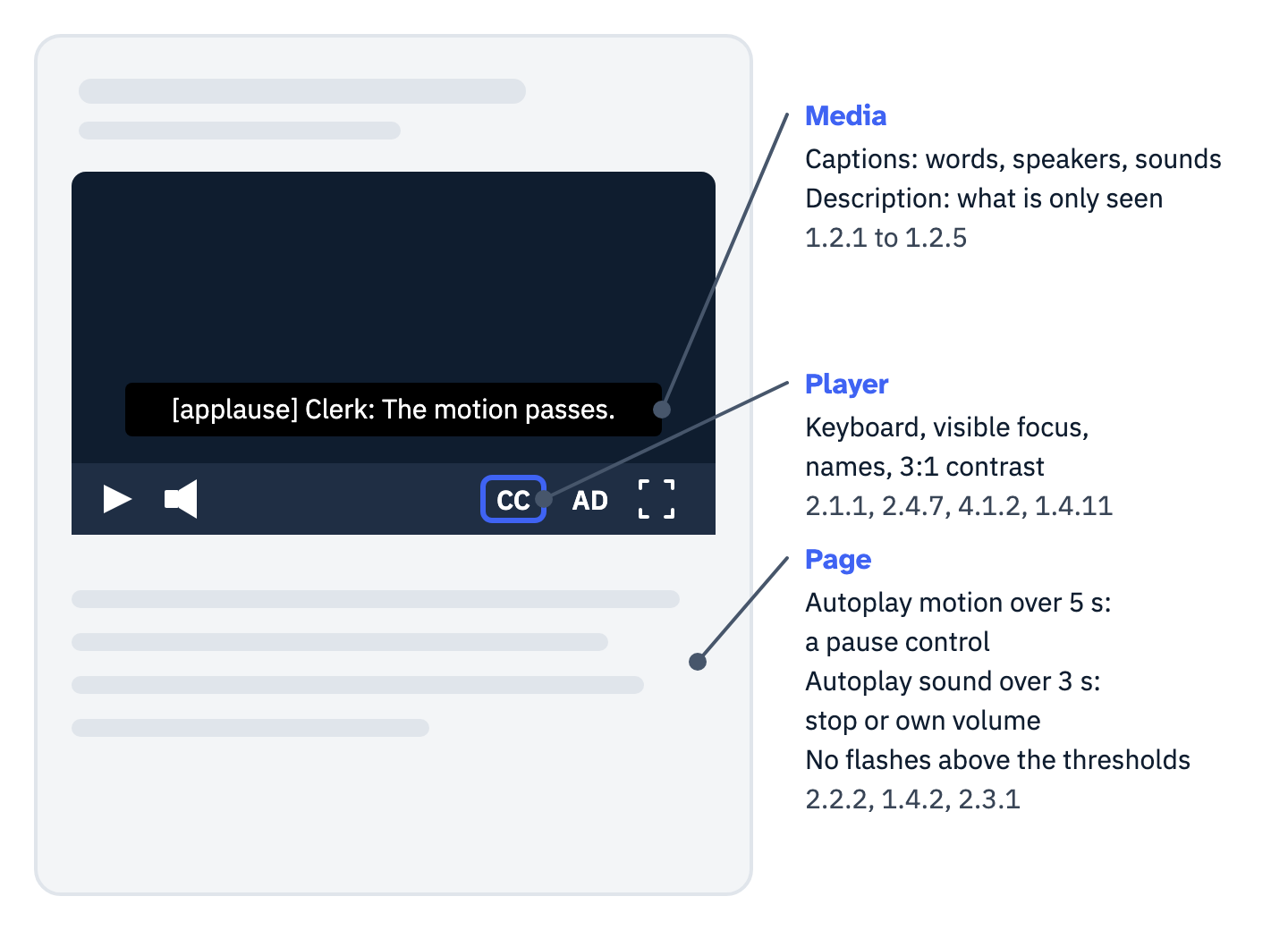
The WCAG video requirements at Level A and AA come from three groups of success criteria. The time-based media criteria, 1.2.1 to 1.2.5, judge the media itself: captions, audio description and text alternatives. The player is judged by the criteria that apply to any interface: keyboard access, visible focus, names and contrast. Three criteria about motion, sound and flashing judge the page the video sits on, because a video that starts by itself can get in the way of everything around it.
Level AAA adds four more media criteria, 1.2.6 to 1.2.9, for sign language, extended audio description, a full media alternative and live audio-only content. No US rule discussed here requires them. A claim of video WCAG compliance at Level AA rests on the rows below, which come from WCAG 2.1, the edition Title II incorporates. How the levels and principles fit together is explained in the guide to the web accessibility guidelines.
View the data as a list
- Media (1.2.1 to 1.2.5): captions with every word, speaker and meaningful sound; description of visual information the soundtrack does not give.
- Player (2.1.1, 2.4.7, 4.1.2, 1.4.11): every control reachable and usable by keyboard, with visible focus, a name and 3:1 contrast.
- Page (2.2.2, 1.4.2, 2.3.1): a way to pause, stop or hide motion that starts by itself and runs more than 5 seconds beside other content; a way to pause, stop or separately turn down sound that plays by itself for more than 3 seconds; nothing that flashes more than three times a second above the flash thresholds.
The video accessibility checklist below gives each criterion a first test. Run it on one video at a time and record the result per row.
| Criterion and level | What the video must do | First test |
|---|---|---|
| 1.2.1 Audio-only and Video-only (Prerecorded), A | A transcript for audio-only content; a transcript or an audio track for silent video that carries information | Ask what a person who cannot hear, or cannot see, would miss |
| 1.2.2 Captions (Prerecorded), A | Captions for all speech and for the sounds needed to follow the content | Compare two minutes word for word: any miss fails the file, a clean sample passes only the minutes checked |
| 1.2.3 Audio Description or Media Alternative (Prerecorded), A | Audio description, or a full text alternative of what is seen and heard | Listen without watching and list what you missed |
| 1.2.4 Captions (Live), AA | Captions on live audio in a video stream (a live audio-only stream is 1.2.9, AAA) | Watch the stream with captions on, from a viewer’s seat |
| 1.2.5 Audio Description (Prerecorded), AA | Audio description of visual information the soundtrack does not give | The same list as 1.2.3; a transcript no longer counts |
| 1.4.2 Audio Control, A | Sound that plays by itself for more than 3 seconds can be paused or stopped, or turned down with a control separate from the system volume | Load the page, time any sound, and look for a pause, stop or volume control on the page itself |
| 2.2.2 Pause, Stop, Hide, A | Motion that starts by itself, lasts more than 5 seconds and sits beside other content can be paused, stopped or hidden, unless the motion is essential | Look for a pause control on every video that plays by itself |
| 2.3.1 Three Flashes or Below Threshold, A | Nothing flashes more than three times in one second, unless the flash is below the thresholds | Watch for strobes and rapid cuts, and measure anything doubtful |
| 2.1.1, 2.1.2, 2.4.7, 4.1.2, 1.4.3, 1.4.11, 1.4.13, A and AA | Every player control works by keyboard, lets focus leave, shows focus and has a name; text meets 4.5:1 and controls 3:1; controls revealed on hover stay put | Put the mouse aside and use the player |
Captions pass when they carry what is said and every sound that matters, in time
WCAG defines captions as a “synchronized visual and/or text alternative for both speech and non-speech audio information needed to understand the media content,” and a note to the definition lists what that covers: “sound effects, music, laughter, speaker identification and location.” The Understanding document for 1.2.2 says captions “identify who is speaking and include non-speech information conveyed through sound, including meaningful sound effects.” Dialogue alone does not pass. Notes to the definition cover both kinds: closed captions “can be turned on and off with some players,” and open captions “cannot be turned off.”
Automatic captions are a first draft, and W3C’s media guide is direct about them: “Automatically-generated captions do not meet user needs or accessibility requirements, unless they are confirmed to be fully accurate. Usually they need significant editing.” That is guidance, not a success criterion, but it describes the test. Someone has to confirm the file, and confirming means checking it against the audio.
No US rule sets a caption accuracy percentage, and DOJ declined to set one (89 FR 31359). How that question was argued, and the FCC television standard that can be borrowed as contract language, are in the guide to buying captions, description and CART. For the check itself, WCAG’s definition gives four things to test:
- Words. Check names, numbers and every negation against the audio: W3C’s guide warns that “missing just one word such as ‘not’ can make the captions contradict the actual audio content.”
- Sounds and speakers. A door, applause, music that sets the mood, a voice from off screen: each one a hearing viewer would notice belongs in the file.
- Timing. WCAG defines captions as synchronized: each line appears while its words are spoken, not a line early or late.
- Completeness and placement. Captions run from the first word to the last, and, in WCAG’s own note, “should not obscure or obstruct relevant information in the video.”
Live captions fall under 1.2.4 at Level AA. A recording of the same event, once posted, is no longer live: WCAG defines prerecorded as “information that is not live,” so the posted file needs 1.2.2 captions and 1.2.5 description like any other video. For the check itself, fail a caption file for a wrong name, a missing negation, a missing speaker change or a missing sound that carries meaning, and record which minutes you sampled.
Audio description is a decision to record for each video
WCAG gives a choice at Level A and takes it away at Level AA. The Understanding document for 1.2.3 explains: “At Level A in Success Criterion 1.2.3, authors do have the choice of providing either an audio description or a full text alternative. If they wish to conform at Level AA, under Success Criterion 1.2.5 authors must provide an audio description”. Title II adopts Level AA, so for a government video the audio description WCAG asks for is narration, not a transcript.
The decision depends on one exception. Audio description is “narration added to the soundtrack to describe important visual details that cannot be understood from the main soundtrack alone,” and the Understanding document for 1.2.5 adds: “if all of the important information in the video track is already conveyed in the audio track, no additional audio description is necessary.” A speaker who says everything that matters, including who they are, needs none. A trainer who says “click here” while the screen shows where needs it.
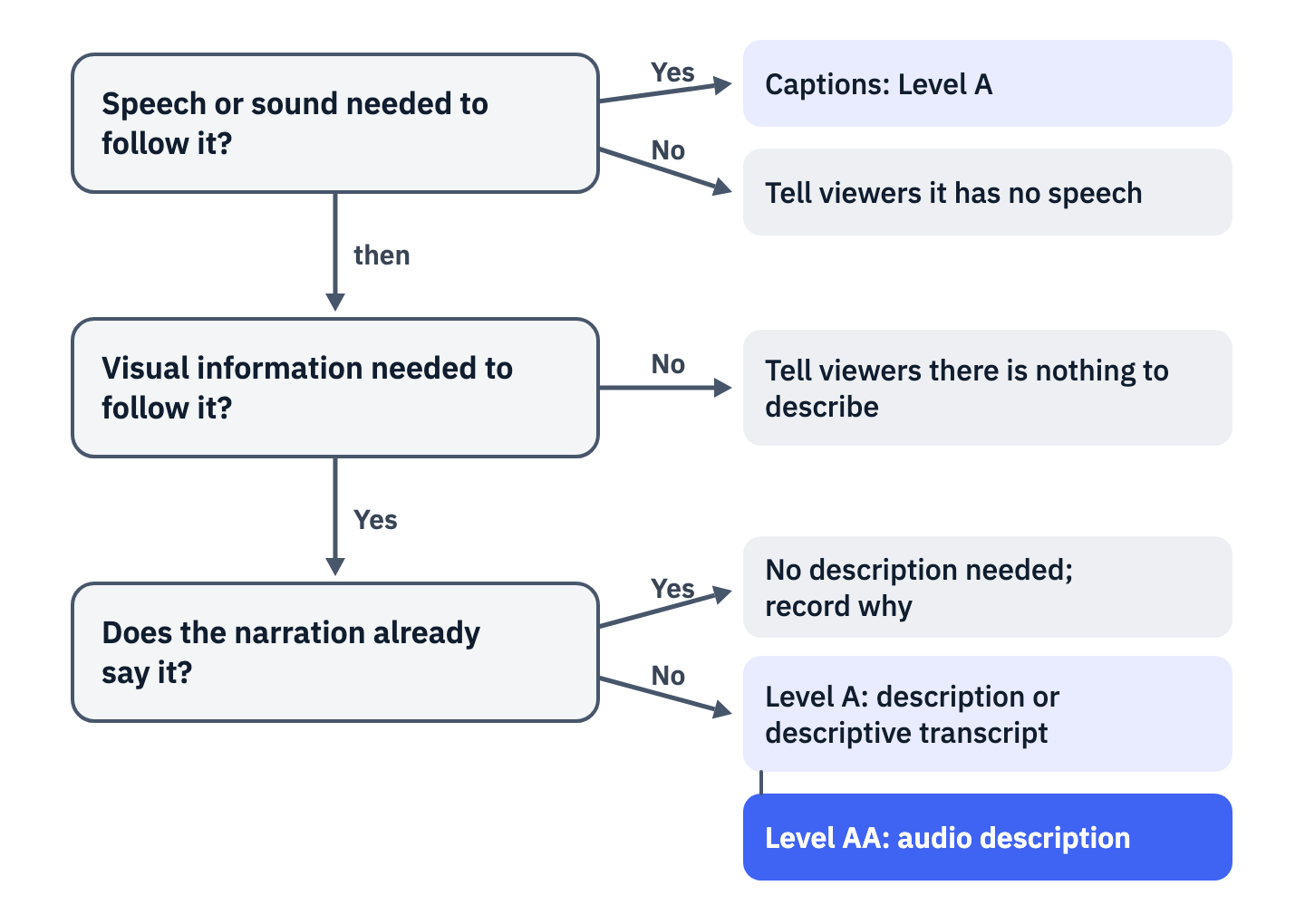
W3C’s planning checklist turns this into two questions per video: “Does the video have speech or other audio that is needed to understand the content?” and “Does the video have visual information that is needed to understand the content?” To answer the second, play the video without watching it and list every visual fact you missed: on-screen text, names and titles, charts, what someone points at. W3C’s description guide counts “text displayed in the video” among them.
View the data as a list
- Speech or sound needed to follow the video? Yes: captions (Level A). No: tell viewers it has no speech.
- Visual information needed to follow it? No: tell viewers there is nothing to describe. Yes: go on to the next question.
- Does the narration already say it? Yes: no description needed; record why. No: description or a descriptive transcript at Level A, audio description at Level AA.
There are three ways to supply description:
- Integrated description: put the visual facts into the script so the speaker says them, as in W3C’s example of a “Training video with the description integrated in what the trainer is saying.”
- A described version or a separate description track.
- A descriptive transcript, which meets 1.2.3 at Level A but not 1.2.5 at AA; a plain transcript of the audio is a different thing again.
Record the decision either way: the video, the visual facts listed, whether the audio carries them, who checked and when. Where the answer to either question is no, W3C’s checklist has one more step: “inform users,” for example with a line under the video saying it has no speech or no visual information beyond the narration.
Video that starts by itself and runs past five seconds needs a way to stop it
Two Level A criteria apply to every video that starts on its own. 2.2.2 Pause, Stop, Hide covers moving content that “(1) starts automatically, (2) lasts more than five seconds, and (3) is presented in parallel with other content,” which needs “a mechanism for the user to pause, stop, or hide it”, unless the movement is essential to the activity. 1.4.2 Audio Control covers audio that “plays automatically for more than 3 seconds.” Both carry a note that they apply to all content on the page, and 2.3.1 rules out anything that “flashes more than three times in any one second period” unless it stays below the flash thresholds.
The background video behind a home page headline meets all three conditions of 2.2.2. On the home page of a hotel group, a full-window video starts by itself, runs 12.5 seconds and loops, behind the headline, two links and a booking button. It is muted, so 1.4.2 does not apply. No button or link on the page pauses it, at window widths of 1280, 720 and 390 pixels.

The fix is a pause button in the hero that is visible, reachable with Tab and named for what it does, such as “Pause background video”. Its name or state changes when the video stops. A silent video that plays once and stops within five seconds needs no control; if its sound runs past three seconds, 1.4.2 still asks for one.
Test with a stopwatch: if motion runs past five seconds beside other content and nothing stops it, the page fails 2.2.2. If the loop also shows something a viewer needs, such as a product in use, ask the 1.2.1 question as well: what would a person who cannot see it miss?
The player is part of the video, and its controls are tested like any other
W3C’s guide to media players lists what an accessible video player needs to do: “Provide keyboard support”, “Make the keyboard focus indicator visible”, “Provide clear labels” and “Have sufficient contrast between colors for text, controls, and backgrounds”. The WCAG criteria behind that list include 2.1.1 Keyboard, 2.4.7 Focus Visible, 4.1.2 Name, Role, Value, 1.4.3 Contrast (Minimum) for the player’s text, and 1.4.11 Non-text Contrast, which asks for 3:1 on “Visual information required to identify user interface components and states”.
Test with the keyboard alone. Tab to the player, then to each control: play, pause, volume, captions, audio description if there is one, settings and full screen. Each control must take focus where you can see it, work with Enter or Space, and carry a name such as “Captions”, not just “button”, in a screen reader or the browser’s accessibility tree. Controls that appear on hover fall under 1.4.13 Content on Hover or Focus: the pointer has to be able to move onto them “without the additional content disappearing.”
Embedded players bring the platform’s controls, unless the embed code removes them. On three pages screened for this article in October 2026, YouTube embeds carried controls=0. YouTube’s parameter documentation says what that does: “Player controls do not display in the player.” The captions button and the pause button go with them, unless the page supplies its own.
A second parameter, disablekb=1, “causes the player to not respond to keyboard controls.” Read the source address of every embedded player before anything else:
<iframe src="https://www.youtube.com/embed/VIDEO_ID?controls=0&playsinline=1" title="…"></iframe>Federal agencies can have one more rule for the player. Section 508’s software chapter, 503.4 in 36 CFR part 1194, appendix C, says: “Where ICT displays video with synchronized audio, ICT shall provide user controls for closed captions and audio descriptions conforming to 503.4.” Where the player has a volume control, the caption control has to sit “at the same menu level as the user controls for volume or program selection,” so a captions switch buried in a settings menu can miss 503.4. The chapter has a scope limit: under 501.1, a web application that has no access to platform accessibility services, and includes no component that has it, does not have to meet 503 if it conforms to WCAG 2.0 Level A and AA. Settle which side of that line a player sits on before testing it against 503.4.
Two criteria added in WCAG 2.2 also reach player controls, 2.5.8 Target Size (Minimum) and 2.4.11 Focus Not Obscured (Minimum); Title II does not require them, and what WCAG 2.2 AA adds covers both. Pass the player only when every control works from the keyboard, focus can leave the player (2.1.2 No Keyboard Trap), focus is visible, every control has a name, text meets 4.5:1 and controls meet 3:1. Native browser controls the page has not restyled are exempt from 1.4.11 and 1.4.13, which both except components whose look the browser sets.
Under Title II the video rules arrive through WCAG 2.1, and the exceptions are narrow
ADA video compliance for a state or local government means WCAG 2.1 Level A and AA under 28 CFR 35.200, from April 26, 2027 for entities of 50,000 people or more and April 26, 2028 for smaller ones and special district governments. Section 35.200 does not mention video. Video comes in through the definition of web content in 35.104, whose examples include “text, images, sounds, videos, controls, animations, and conventional electronic documents.” HHS’s Section 504 rule applies the same standard to recipients of HHS funding, from May 11, 2027, or May 10, 2028 for recipients with fewer than 15 employees. Both sets of dates come from interim final rules issued in April and May 2026, and they may not be the last change.
The archive exception in 35.104 has four conditions, and all of them must hold. The content was created before the compliance date, or reproduces paper documents or other physical media, such as tapes, made before it; it “Is retained exclusively for reference, research, or recordkeeping,” it “Is not altered or updated after the date of archiving,” and it “Is organized and stored in a dedicated area or areas clearly identified as being archived.” DOJ’s first-steps guide adds: “Just putting content into an archive isn’t enough to make the content qualify for this exception.”
DOJ’s own example in Appendix D is a town’s archived “photos or videos from the parade in past years.” Existing duties still apply to archived video. DOJ’s small entity guide gives the example: if someone asks, “one way that the city could provide effective communication to the person is by adding captions to the video and sharing a copy of the captioned video file with the person.”
Three more exceptions in 35.201 do less than they seem to for video:
- Third-party content is excepted “unless the third party is posting due to contractual, licensing, or other arrangements with the public entity,” so a vendor’s hosted video is in scope.
- The exception for individualized, password-protected documents covers only conventional electronic documents about a specific person or account, which 35.104 limits to PDF, word processor, presentation and spreadsheet formats, so a lecture recording behind a login is not in it.
- Only social media posts “posted before the date the public entity is required to comply” are excepted; a video posted after that date is not.
Where a platform cannot be fixed, a conforming alternate version is allowed “only where it is not possible to make web content directly accessible due to technical or legal limitations” (35.202). A claim of fundamental alteration or undue burden must be decided “by the head of a public entity or their designee” after considering all available resources, must come with “a written statement of the reasons,” and still leaves the duty to comply as far as the burden allows (35.204).
Federal agencies work under Section 508, which applies WCAG 2.0 Level A and AA to electronic content and reaches internal material that is official business, including “Educational or training materials” (E205.3). DOJ’s Title III regulation sets no technical standard for websites: its web guidance says the Department “does not have a regulation setting out detailed standards.” Before testing a library, sort it: what is archived under all four conditions, what a vendor posts under contract, and what was posted where, and when.
Questions buyers ask about video accessibility
Are auto-generated captions enough for ADA Title II?
Not without checking. Title II requires captions through WCAG 2.1, and W3C’s media guide says automatic captions “do not meet user needs or accessibility requirements, unless they are confirmed to be fully accurate.” For live captions, DOJ declined to set an accuracy number or a method, and left public entities “the flexibility to determine the best way to comply” (89 FR 31359). For a posted file, edit it, then check it against the audio.
How can a team make a video accessible before it is published?
Plan it in the script. Have speakers say the names, numbers and on-screen text that matter, so less description is needed, then caption and check the final edit, not the draft. A note to WCAG’s definition of an alternative for time-based media says a screenplay meets it “only if it was corrected to accurately represent the final synchronized media after editing.” W3C’s planning guide walks through the rest.
Is WCAG legally required for video?
For state and local governments under Title II and recipients of HHS funding under Section 504, yes: WCAG 2.1 Level A and AA from 2027 or 2028. Federal agencies already work to WCAG 2.0 Level A and AA under Section 508. For businesses, the Title III regulation names no standard.
Your next step
Take the five videos people watch most, run the checklist on each, and record the result per criterion, with the minutes sampled for captions and the description decision. On the same pass, read the source address of every embedded player and the autoplay settings of every background video. Two calls stay with you and counsel: whether a silent background loop carries information that needs a text alternative, and how far the conforming alternate version rule stretches when a platform cannot carry audio description. No rule sets a caption accuracy percentage either.
When the library is bigger than the team that has to check it, hand the fixing over. ADA Compliance Pros fixes media without captions, transcripts or audio description, retests each fix by hand and gives you a record of what was verified and what is still open; if there is no audit yet, the work starts with one. Tell us what you are facing, a video library, an audit report or a complaint, and we will scope the accessibility remediation with you on a call.