
ADA compliance checkers: what the score means and what it misses
 By Mark Tudor Updated
You typed your address into a free ADA compliance checker and got something back: a score out of 100, a grade, or a list of errors in red. Two conclusions are tempting, and both are wrong. The first is that a low score means the site breaks the law. The second is that a clean score means the work is done.
A checker measures part of WCAG precisely and leaves the rest to a person, so its score is a progress gauge and never a verdict.
A checker measures code, and only part of WCAG can be measured
A free checker runs a rules engine over the code of a page. WebAIM’s WAVE and the open-source axe-core are two of the engines behind them, and both document what they do. WAVE sorts what it finds into errors, contrast errors, alerts, features, structural elements and ARIA, and its own help page explains the colors: “RED icons indicate accessibility errors that need to be fixed. GREEN icons indicate accessibility features - things that probably improve accessibility (though these should be verified). The other icons and indicators, particularly the yellow alert icons, highlight other elements that you should look at.”
axe-core is the library behind Google’s Lighthouse and Microsoft’s Accessibility Insights. Version 4.14.0, published on October 5, 2026, ships 105 rules, 90 of them on by default. Its results come in four groups, and one of them is a pile of questions rather than answers. The axe-core API documentation calls it “incomplete”, “[a]lso known as ‘needs review’”: results that “could neither be determined to definitively pass or definitively fail.”
A rule only exists where code can be tested, and WCAG was not written for code alone. We matched the default rules of axe-core 4.14.0 against the success criteria by the tags each rule carries. Of the 55 criteria at Level A and AA in WCAG 2.2, 20 have at least one rule switched on by default, and 35 have none. A tag shows that a rule touches a criterion, not that it tests all of it. Our guide on how to read axe-core rule tags separates WCAG failures from best-practice advice.
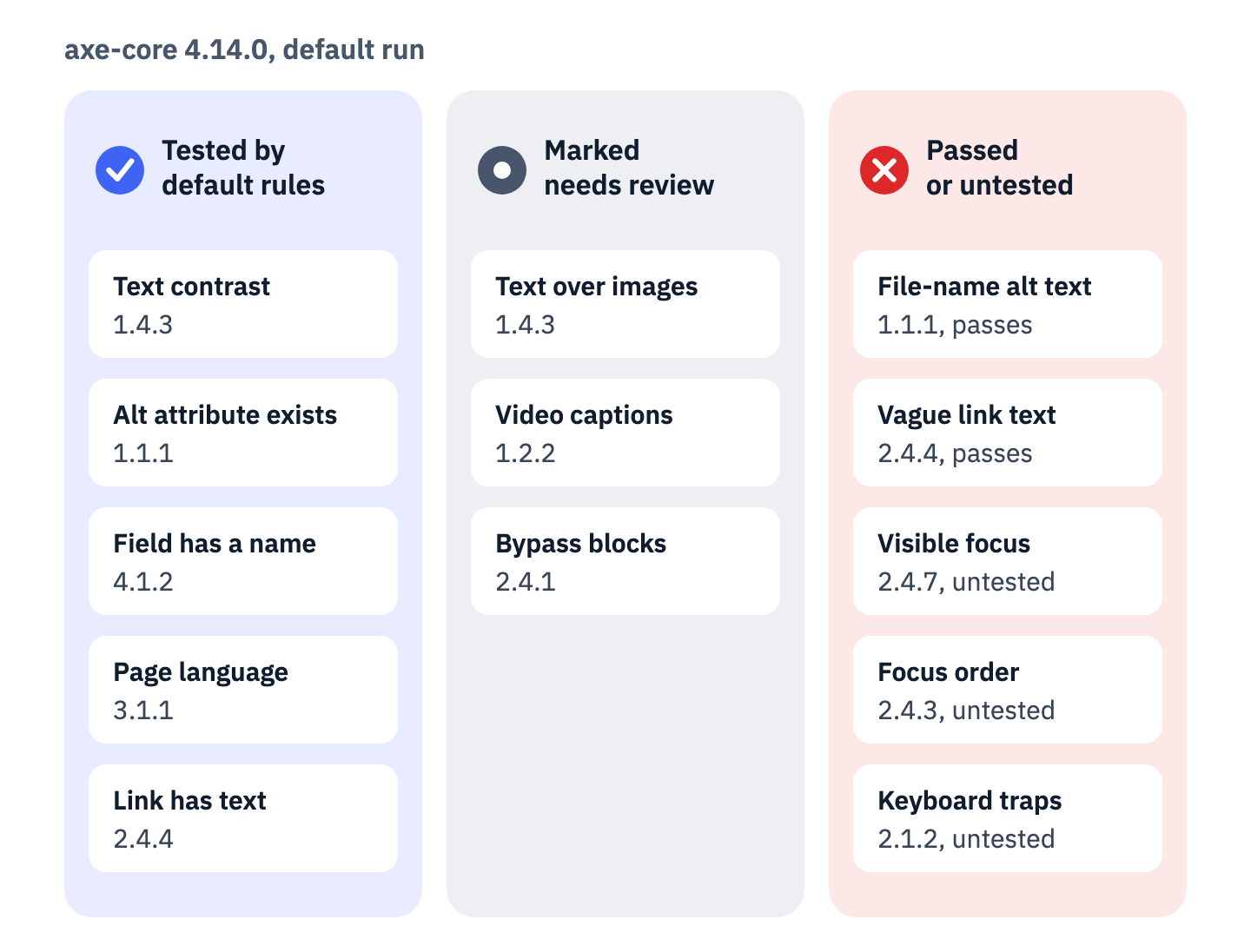
View the data as a table
| What axe-core 4.14.0 does | Check | WCAG criterion |
|---|---|---|
| Tests it with a default rule | Text contrast | 1.4.3 |
| Tests it with a default rule | Alt attribute exists | 1.1.1 |
| Tests it with a default rule | Form field has a name | 4.1.2 |
| Tests it with a default rule | Page language set | 3.1.1 |
| Tests it with a default rule | Link has text | 2.4.4 |
| Marks it needs review | Text over images or gradients | 1.4.3 |
| Marks it needs review | Video with no captions track | 1.2.2 |
| Marks it needs review | A way to bypass repeated blocks | 2.4.1 |
| Passes it | Alt text that looks like a file name | 1.1.1 |
| Passes it | Vague link text such as “read more” | 2.4.4 |
| Has no rule for it | Visible keyboard focus | 2.4.7 |
| Has no rule for it | Focus order | 2.4.3 |
| Has no rule for it | Keyboard traps | 2.1.2 |
The federal government puts a ceiling on the whole category. Section508.gov, run by the General Services Administration, states: “At their very best, automated scanning tools currently only cover 30%-35% of accessibility requirements.” That is a share of requirements, not of the problems on your site, and Section508.gov gives no method for it.
One public test puts numbers on the gap for a single constructed page. In 2017 the UK’s Government Digital Service built a page with deliberate barriers, “a total of 143 failures grouped into 19 categories”, and ran 10 tools against it. Counting only errors and warnings, the best single tool found 37% of the barriers; counting prompts for manual inspection as well, the best found 41%. “Of the 143 barriers we created, a total of 42 were missed by all of the tools we tested.” It is one test of one page, with tool versions now nine years old.
Google is less specific and just as clear in Lighthouse’s own description: “Automatic detection can only detect a subset of issues and does not guarantee the accessibility of your web app, so manual testing is also encouraged.”
Where a scan does measure, it is precise. In October 2026 we screened 24 small-business pages, 21 of them home pages, with axe-core 4.11.4 and a scripted pass of 15 Tab presses on each. On one of the home pages, a header button sets white text on red at 4.49:1, and the scan flagged it. WCAG asks for 4.5:1, and W3C’s Understanding document for criterion 1.4.3 says the computed value “should not be rounded (e.g., 4.499:1 would not meet the 4.5:1 threshold).”

The free tools that show their work are the useful ones. WAVE draws its icons on top of your page, so findings sit next to the elements they are about. Lighthouse runs from the developer tools in Chrome. Microsoft’s Accessibility Insights FastPass runs axe-core’s automated checks and then walks you through a tab-stops test by hand, and its documentation is frank about the split: “Automated checks can detect some common accessibility problems such as missing or invalid properties. But most accessibility problems can only be discovered through manual testing.”
Before you read a score, find out which engine produced it and which rules it ran. That one line is the difference between a measurement and a number.
Some failures pass the scan and still stop a person
Some of the failures that shut people out are ones a rule cannot judge. Three of them turned up in our screening.
Alt text that exists but says nothing. Success criterion 1.1.1 asks for “a text alternative that serves the equivalent purpose.” axe-core’s main image rule tests something narrower. Its description reads “Ensure <img> elements have alternative text or a role of none or presentation.” On four home pages in our screening, images carried a file name as alt text, and the image rule of axe-core 4.11.4 reported nothing on any of them. The same rule in 4.14.0 asks only whether the image has alt text, a label, a title or a presentation role, and no check reads what the text says.
WAVE goes one step further: it raises an alert when the alt text is an image file name. WebAIM is candid about the limit: “WAVE cannot tell you if your alternative text is equivalent and appropriate, so it instead reveals the alternative text so it can be evaluated by the WAVE user.” W3C documents the pattern as failure F30, “using text alternatives that are not alternatives (e.g., filenames or placeholder text).” In the WebAIM Million for 2026, 10.8% of images that had alternative text had “questionable or repetitive alternative text”, a file name among the examples.
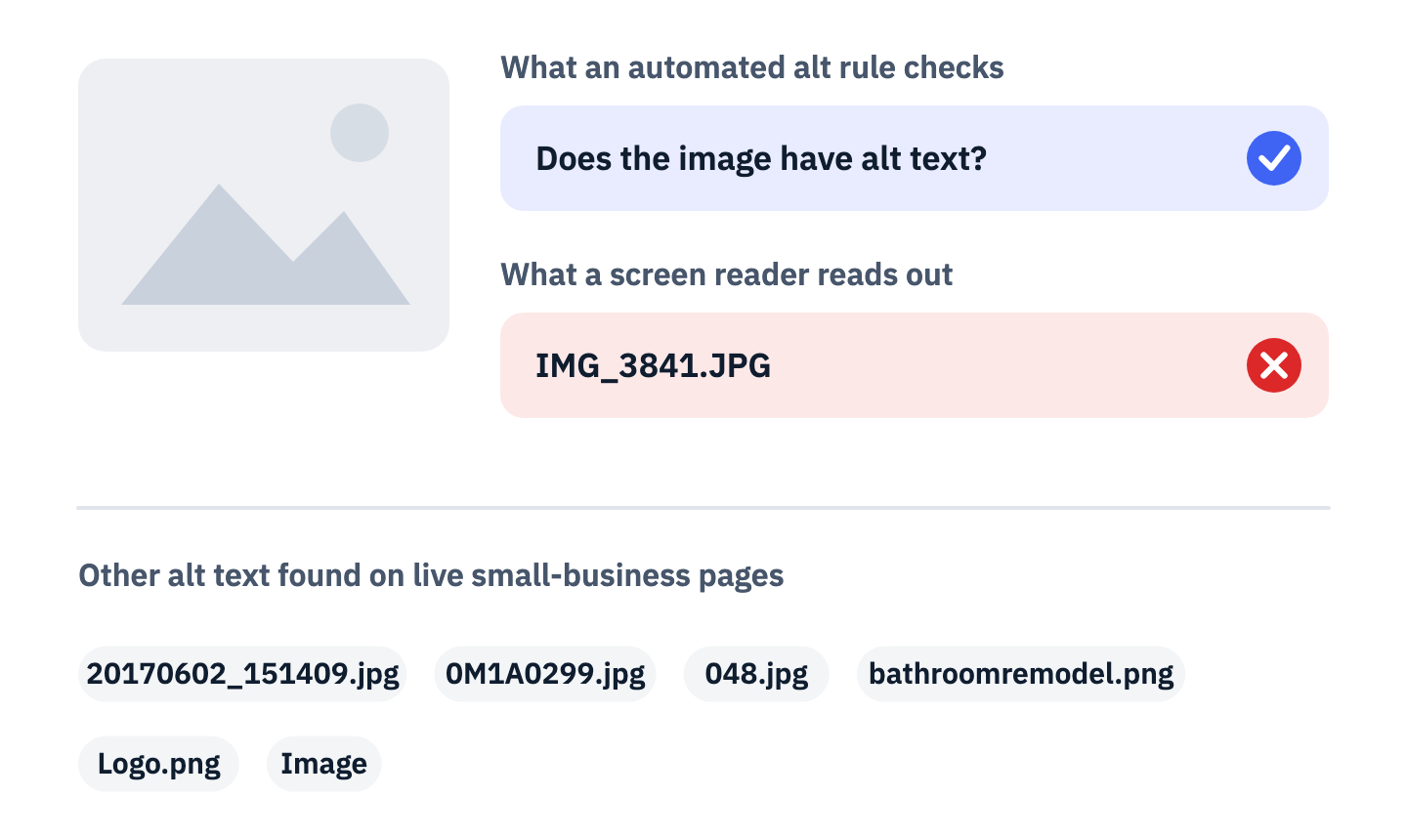
View the data as a list
- What an automated alt rule checks. Whether the image has alt text. For every value below, it does.
- What a screen reader reads out. The alt text itself: IMG_3841.JPG.
- Other values found. 20170602_151409.jpg, 0M1A0299.jpg, 048.jpg, bathroomremodel.png, Logo.png, Image.
A focus indicator that is not there. Criterion 2.4.7 Focus Visible, Level AA, requires that “Any keyboard operable user interface has a mode of operation where the keyboard focus indicator is visible.” No rule among the 105 in axe-core 4.14.0 is tagged to it, no item in WAVE’s documentation maps to it, and Lighthouse lists its focus checks as manual audits that carry no weight in the score. A page can score well on all three and still leave a keyboard user with no idea where they are. On another home page in our screening, after five presses of Tab, focus sits on the second menu link and nothing on the page shows it.

W3C names the cause in failure F78, “styling element outlines and borders in a way that removes or renders non-visible the visual focus indicator”. On this site it is one global rule in the stylesheet, :focus{outline:0}, and no scan reads the page the way a keyboard user moves through it.
Links that only say “read more”. In the 2026 WebAIM Million, “15.2% of pages had ambiguous link text, such as ‘click here’, ‘more’, ‘continue’, etc.” Four of the sites we screened had “read more” links. axe-core’s link rule checks that a link has discernible text, which “Read more” does, so it passes. WAVE raises an alert. Whether it fails WCAG depends on context: criterion 2.4.4 lets the purpose be determined “from the link text together with its programmatically determined link context”, so a person has to read the paragraph around it.
Put the mouse aside and press Tab through your own home page from top to bottom. If you lose track of where you are at any point, you have found a failure no score will ever show you.
Detected failures are the norm, and a clean report is not a verdict
The 2026 WebAIM Million, a scan of the top one million home pages run in February 2026, found that “95.9% of home pages had detected WCAG 2 failures”, with an average of 56.1 errors per page. Even by a machine’s standard, only 4.1% of those pages had no detected WCAG 2 failure. If your first scan shows dozens of errors, that is close to the average WebAIM found. It is a reason to start work.
The opposite reading is the dangerous one. WebAIM states the limit of its own tool in its methodology: “Absence of detected errors does not indicate that a page is accessible or conformant.” Its help page puts it in capitals: “The absence of errors DOES NOT mean your page is accessible or compliant.” The Department of Justice’s guidance on web accessibility says the same in both directions:
A “clean” report does not necessarily mean everything is accessible. Also, a report that includes a few errors does not necessarily mean there are accessibility barriers.
Scores add a second layer of distance from the standard. Lighthouse’s accessibility score is “a weighted average of all accessibility audits”, each one pass or fail, and its current configuration weights some best-practice audits that no WCAG criterion requires. W3C’s evaluation methodology, WCAG-EM 2.0, published as a Group Note in July 2026, is direct about it: “aggregated scores can be misleading and do not provide sufficient context and information to understand the actual accessibility of a digital product. For this and other reasons WCAG 2 does not provide a rating scheme.”
Treat a score as a progress gauge for one tool on one set of pages. Compare it only with a later run of the same tool and version on the same pages, and never present it as a statement about compliance.
The score is measured against a version your rule may not name
The tools and the rules point at different editions of WCAG. WAVE checks against WCAG 2.2 Level A and AA. axe-core keeps its one WCAG 2.2 rule, target-size, switched off by default, its documentation says, “until WCAG 2.2 is more widely adopted and required”, while Lighthouse switches that rule on and weights it into its score. Microsoft’s Accessibility Insights assessment measures WCAG 2.2 Level AA.
| Tool | What it checks against | Can you pick the edition? |
|---|---|---|
| WAVE | WCAG 2.2, Level A and AA | No setting in its help documentation |
| axe-core 4.14.0 | Rules tagged by edition, from WCAG 2.0 to 2.2; its one 2.2 rule is off by default | Yes, through its tags |
| Lighthouse 13.5.0 | axe-core’s WCAG 2.0 A and AA rules, plus a fixed list that adds target size and best-practice rules | No, the list is fixed in its code |
The rules are older. Section 508 requires federal electronic content to “conform to Level A and Level AA Success Criteria and Conformance Requirements in WCAG 2.0”, in E205.4 of its standards. The ADA Title II rule for state and local governments, 28 CFR 35.200, requires WCAG 2.1 Level A and AA in its June 2018 edition. It applies from April 26, 2027 to public entities with a total population of 50,000 or more, other than special district governments, and from April 26, 2028 to smaller entities and all special district governments. Businesses open to the public under Title III have no technical standard for websites in any regulation. The full map of rules, versions and dates is in the guide to the web accessibility guidelines.
The federal government is explicit about how scan results may be described. Section508.gov’s guidance on tracking and reporting conformance says: “Until test coverage dramatically improves, results from automated scanning tools should never be represented as “508 compliance results.” Rather, they should be used and consistently communicated to agency stakeholders as risk monitoring mechanisms, where reported test results indicate potential accessibility issues.”
Write the version on every report you keep. axe-core can be limited to one edition by its tags: wcag2a and wcag2aa select the WCAG 2.0 rules, the edition Section 508 names. W3C states that content conforming to WCAG 2.2 also conforms to 2.0, so a 2.2 report still speaks to Section 508, but its 2.2-only findings, such as target size, are not 508 requirements.
An automatic fix is a claim, and the FTC challenged one vendor’s version of it
An overlay is a script added to a site that promises to repair it automatically. The Federal Trade Commission examined the claims of one overlay vendor. On January 3, 2025 it announced that it would require accessiBe to pay $1 million “to settle allegations that it misrepresented the ability of its AI-powered web accessibility tool to make any website compliant with the Web Content Accessibility Guidelines (WCAG)”. The final order was issued on April 21, 2025, and accessiBe neither admitted nor denied the allegations.
The FTC’s complaint states, at paragraph 7, that the company claims installing its tool “makes a website compliant with 30% of WCAG’s requirements immediately” and the remaining 70% “within 48 hours”. The FTC’s January announcement said that, according to the complaint, these claims “were therefore false, misleading, or unsubstantiated”, and that the company “deceptively formatted third-party articles and reviews to appear as if they were independent opinions by impartial authors and failed to disclose the company’s material connections to the supposedly objective reviewers.”
What the order forbids is the useful part for anyone comparing tools. The FTC’s April announcement says the final order “bars accessiBe from representing that its automated products can make any website WCAG-compliant or can ensure continued compliance with WCAG over time, unless it has the evidence to support such claims.” The complaint itself, at paragraph 78, cites W3C and the institute behind WebAIM for the position that “no automated testing tool alone can determine if a website meets accessibility standards. Rather, manual human testing is required.” What an overlay can and cannot put in a conformance report is covered in what an overlay can claim in an ACR.
Before you accept any offer to fix a site automatically, ask two questions in writing: what changes in your own code, and what evidence supports the claim that the result conforms to WCAG.
A report is a list of leads to work in order
A report is a list of leads, grouped by how sure the tool is. Read it in that order.
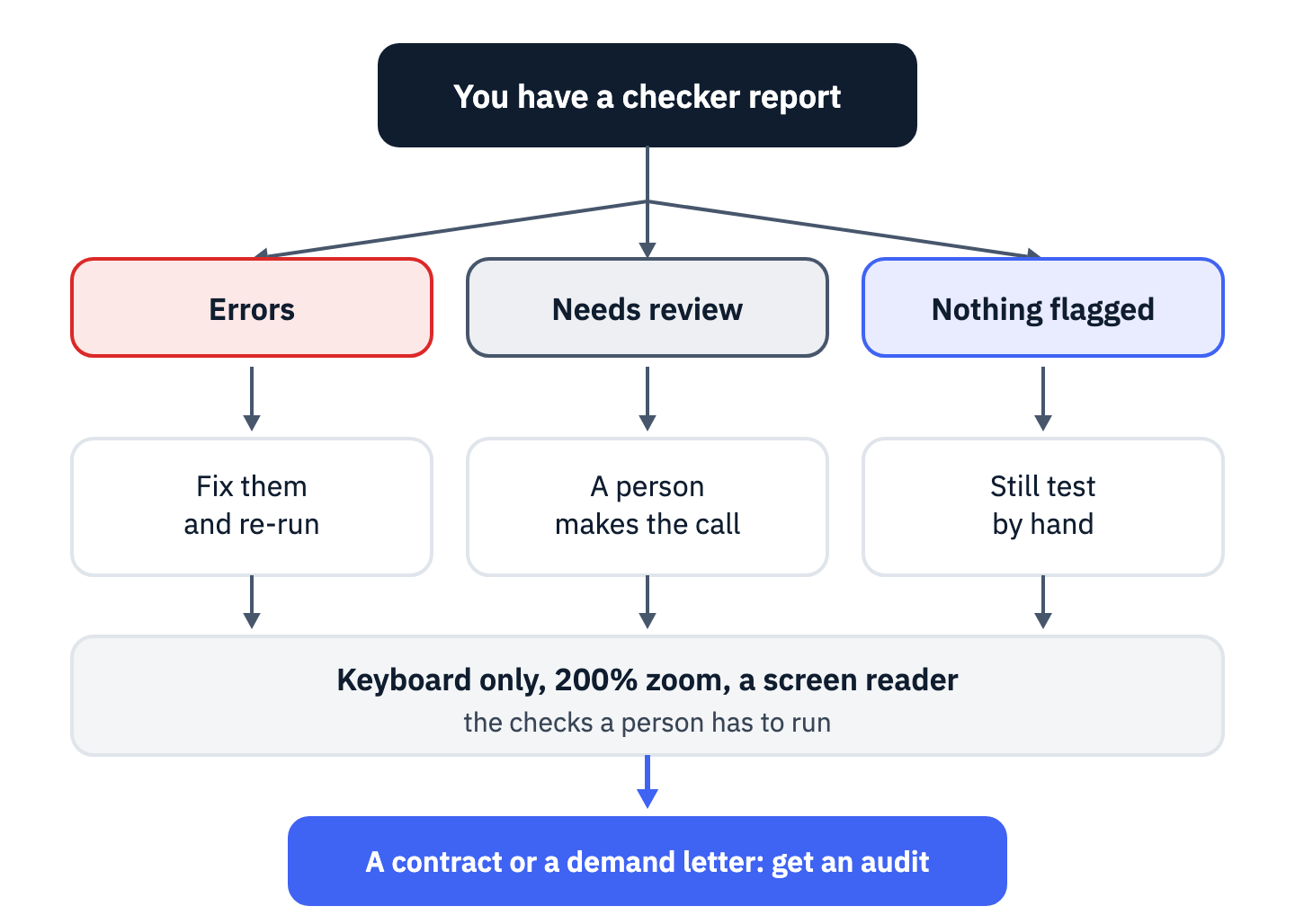
View the data as a list
- Errors. Fix them and re-run the scan.
- Needs review or alerts. A person decides whether each one fails.
- Nothing flagged. Still test by hand.
- All three. Run the keyboard-only, 200% zoom and screen reader checks.
- A contract, a procurement questionnaire or a demand letter. Get a full audit.
- Save the report as it is. Record the tool, its version, the date and the exact pages scanned. If a checker does not name its engine and version, write that down too, and run the same pages through a tool that does. WCAG-EM asks that any score come with its method: “Whenever a score is provided, it is essential that the scoring approach is documented and made available to the evaluation commissioner along with the report, to facilitate transparency and repeatability.”
- Fix the errors at their source. Start with the pages a visitor needs to finish a task, such as a contact form or a checkout. axe-core rates each violation minor, moderate, serious or critical, which gives an order within a page. When the same error appears on many pages, look for the template they share, such as a header or a form. One fix there repairs every page that uses it.
- Work through the review items one by one. WebAIM’s advice for its own tool applies to all of them: “The goal should not be to get rid of all icons, except for the errors which may represent an end user issue, but must be manually assessed.”
- Run the checks no rule covers. W3C’s test procedure for focus is two lines long: “Set the focus to all focusable elements on a page using the keyboard. Check that the focus indicator is visible.” Read every alt text, and fill in one form with errors on purpose. Zoom the page to 200%: criterion 1.4.4 asks that text resize that far “without loss of content or functionality”. Then listen to the home page from the top with the screen reader built into your system, VoiceOver on a Mac or Narrator on Windows, and check that each image, link and button says what it is.
- Keep the scan for what it does well. Section508.gov’s testing guidance, last reviewed in May 2018, describes the split: “Use stand-alone automated testing tools to identify obvious errors and augment manual testing.”
If you have not run a scan yet, the free scan on ADACP’s home page runs automated checks on your top-level pages and emails you the report. Note the date and the pages it covered, then read it with the five steps above.
Only testing by a person can support a conformance claim
A conformance claim needs more than a scan, and W3C says so about any evaluation that samples a site. WCAG-EM 2.0 states that “WCAG 2 conformance claims cannot be made for entire websites based upon the evaluation of a selected sub-set of web pages and functionality alone, as it is always possible that there will be unidentified conformance errors on these websites.” Section508.gov notes that scanning tools “can only provide limited test coverage against the 508 Standards (Original or Revised)”, and adds: “Only comprehensive manual testing can validate full conformance with either standard.”
The Department of Justice adds a point no tool can replace. In its guidance appendix to the Title II rule, it “recommends that public entities seek and incorporate feedback from individuals with disabilities on their web content and mobile apps.”
Nothing in this article is legal advice. Whether a particular site is exposed under the ADA, and what to do about a demand letter, are questions for counsel.
Your next step
- Scan your five most important templates. Home, a service or product page, the contact form, the blog post layout and any checkout or application, with the tool, version and date written on the report.
- Run the keyboard and zoom checks on the same pages. They need nothing beyond a keyboard and the browser’s zoom, and they find failures the scan cannot; the website ADA compliance checklist gives the test for every criterion.
- Get the full picture when someone else will rely on it. When a contract, a procurement questionnaire or a demand letter needs an answer you can defend, every criterion at your level has to be tested on your own pages by a person. That is what ADACP’s WCAG audits and testing is for. The five templates from the first step make a sensible opening sample for ADACP’s web accessibility audits.