

An audit report comes back with success criterion numbers written against components: 4.1.2 on the account menu, 2.4.3 on the cookie dialog, 3.3.8 on the sign-in code. The people who fix them think in components, and WCAG does not. Its conformance requirements say conformance “is for full web page(s) only, and cannot be achieved if part of a web page is excluded.”
This index of accessible UI components works from the developer’s end, for 22 components from the modal dialog to the CMS template. For each, it names the WCAG 2.2 success criteria the component’s behavior decides, the failure that W3C documents or a published study measured where there is one, a one-minute check with a keyboard and a screen reader, and the detailed guide.
Every interactive component starts from the same seven success criteria
WCAG defines a user interface component as “a part of the content that is perceived by users as a single control for a distinct function,” including “components generated by scripts.” Seven success criteria are written for every such control; the table sets out this baseline. Each pattern adds its own criteria, and the lists below name only those additions.
| Criterion | Level | What it asks of every interactive component | First test |
|---|---|---|---|
| 2.1.1 Keyboard | A | All functionality works through a keyboard interface | Operate it with Tab, Shift+Tab, Enter, Space, Escape and the arrow keys |
| 2.4.7 Focus Visible | AA | The keyboard focus indicator is visible | Watch for a visible indicator at every stop |
| 4.1.2 Name, Role, Value | A | Name and role can be programmatically determined, user-set states can be set, and notification of changes is available to assistive technologies | Listen for the name, the role and the state with a screen reader |
| 2.5.3 Label in Name | A | The accessible name contains the text of the visible label | Compare what the screen reader says with the label on screen |
| 1.4.11 Non-text Contrast | AA | Visual information that identifies the control and its states has 3:1 against adjacent colors, unless the control is inactive or left to browser styling | Check borders, icons and state indicators with a contrast checker |
| 2.5.8 Target Size (Minimum) | AA | Pointer targets of at least 24 by 24 CSS pixels, or one of five exceptions applies | Measure small controls, then check the spacing exception |
| 2.4.11 Focus Not Obscured (Minimum) | AA | A focused control is not entirely hidden by author-created content | Tab with sticky headers, banners and chat windows showing |
Native controls used as specified pass 4.1.2; the Understanding document says “If the user interface elements are used according to specification the conditions of this provision will be met.” Custom controls need ARIA, and the ARIA Authoring Practices Guide (APG) supplies the ARIA design patterns for them. The APG calls itself an “informative” resource, and so are the Understanding documents and failure techniques cited below; WCAG and ARIA are the normative standards, and conformance is judged against the criteria. The guide to the web accessibility guidelines covers how WCAG’s principles and levels fit together.
The APG’s first principle is that a role is a promise, because “ARIA roles do not cause browsers to provide keyboard behaviors or styling.” The WebAIM Million 2026 found ARIA, landmark roles aside, on 82.7% of the top million home pages, and those pages averaged 59.1 detected errors against 42 without it, though WebAIM notes they were also more complex. Accessible components that need ARIA should be checked against the ARIA rules and the mistakes that fail audits.
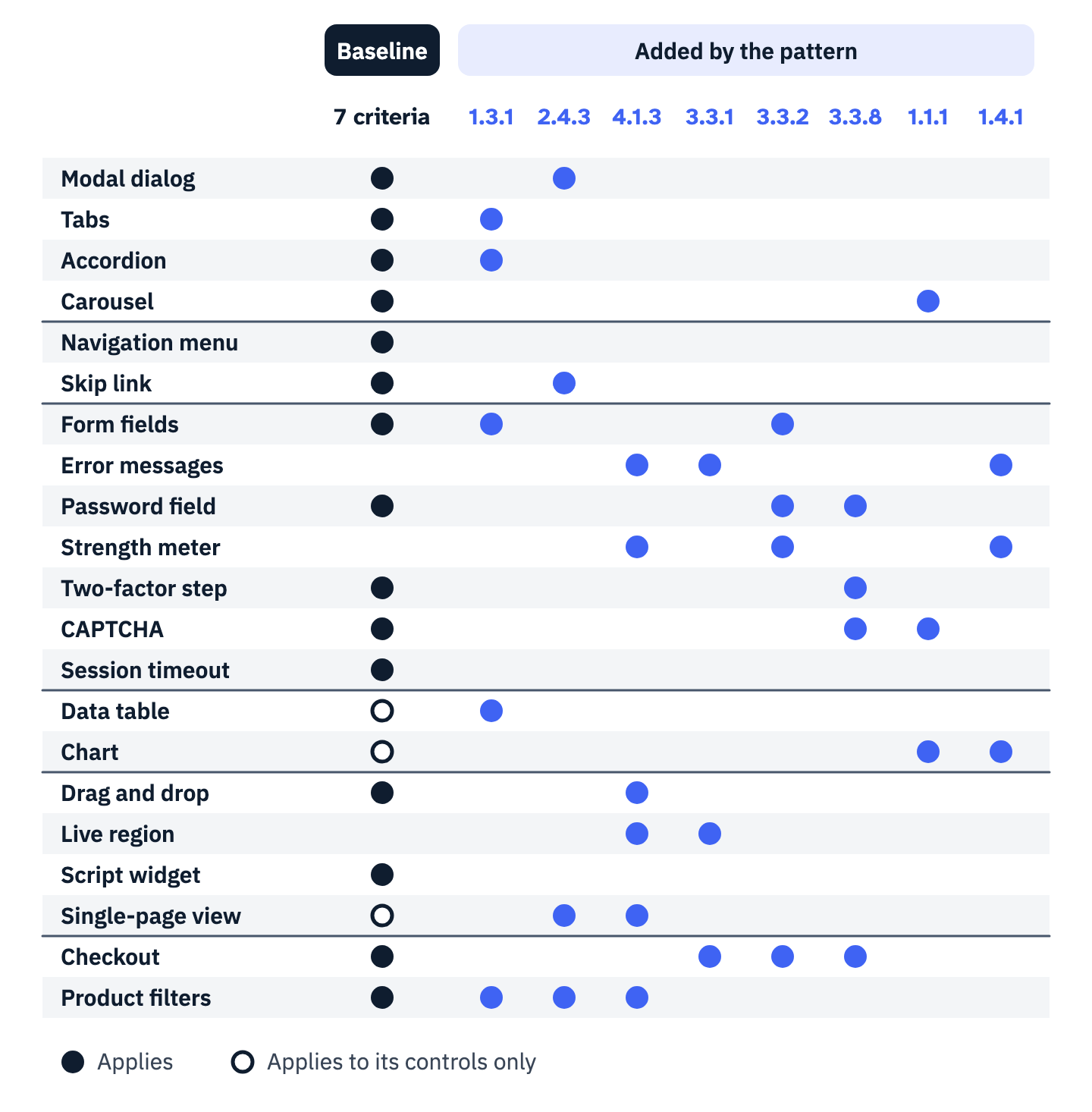
View the data as a table
| Component | Baseline | Criteria in the matrix | Also decided by the component |
|---|---|---|---|
| Modal dialog | Applies | 2.4.3 | 2.1.2 |
| Tabs | Applies | 1.3.1 | None |
| Accordion | Applies | 1.3.1 | None |
| Carousel | Applies | 1.1.1 | 2.2.2 |
| Navigation menu | Applies | None | 1.4.13, 3.2.3 |
| Skip link | Applies | 2.4.3 | 2.4.1 |
| Form fields | Applies | 1.3.1, 3.3.2 | 1.3.5, 2.4.6 |
| Error messages | Not applicable | 4.1.3, 3.3.1, 1.4.1 | 3.3.3 |
| Password field | Applies | 3.3.2, 3.3.8 | 1.3.5 |
| Strength meter | Not applicable | 4.1.3, 3.3.2, 1.4.1 | None |
| Two-factor step | Applies | 3.3.8 | None |
| CAPTCHA | Applies | 3.3.8, 1.1.1 | None |
| Session timeout | Applies | None | 2.2.1 |
| Data table | Sort controls only | 1.3.1 | 1.4.10 |
| Chart | Interactive charts only | 1.1.1, 1.4.1 | 1.4.11, 1.4.13 |
| Drag and drop | Applies | 4.1.3 | 2.5.7 |
| Live region | Not applicable | 4.1.3, 3.3.1 | None |
| Script widget | Applies | None | 3.2.1 |
| Single-page view | Every control in every view | 2.4.3, 4.1.3 | None |
| Checkout | Applies | 3.3.1, 3.3.2, 3.3.8 | 3.3.4, 3.3.7 |
| Product filters | Applies | 1.3.1, 2.4.3, 4.1.3 | 2.4.1 |
Each one-minute check has two passes. The keyboard pass uses only the keys in the table’s first row, with the mouse out of reach. The screen reader pass listens for each control’s name, role and state. A scan cannot stand in for them: WebAIM’s methodology notes that “not all conformance failures can be automatically detected.” The table’s last three rows need a contrast checker, a measurement or sticky content left showing.
Run both passes where the component ships. WCAG applies conformance to complete processes as well as full pages, so a dialog that passes in a demo can still fail inside the checkout that opens it. Log each result against its criterion number, as an Accessibility Conformance Report does.
Dialogs, tabs, accordions and carousels are judged on focus and announced state
Modal dialog
The APG dialog pattern sets the focus lifecycle. On open, “focus moves to an element inside the dialog”; Tab and Shift+Tab wrap inside it; Escape closes it; on close, “focus returns to the element that invoked the dialog” unless it no longer exists or the workflow points elsewhere. Failure F85 is a dialog that neither takes focus nor sits next in the tab order. The native dialog element opened with showModal() becomes “the top-most modal dialog” and returns focus when it closes. The modal guide covers focus trap code and when the native element is the safer choice.
- Must pass, beyond the baseline: 2.1.2 No Keyboard Trap; 2.4.3 Focus Order.
- One-minute check: open it with Enter, Tab past the last control and confirm focus wraps to the first. Press Escape and confirm focus is back on the opener. The screen reader should announce the title and “dialog.”
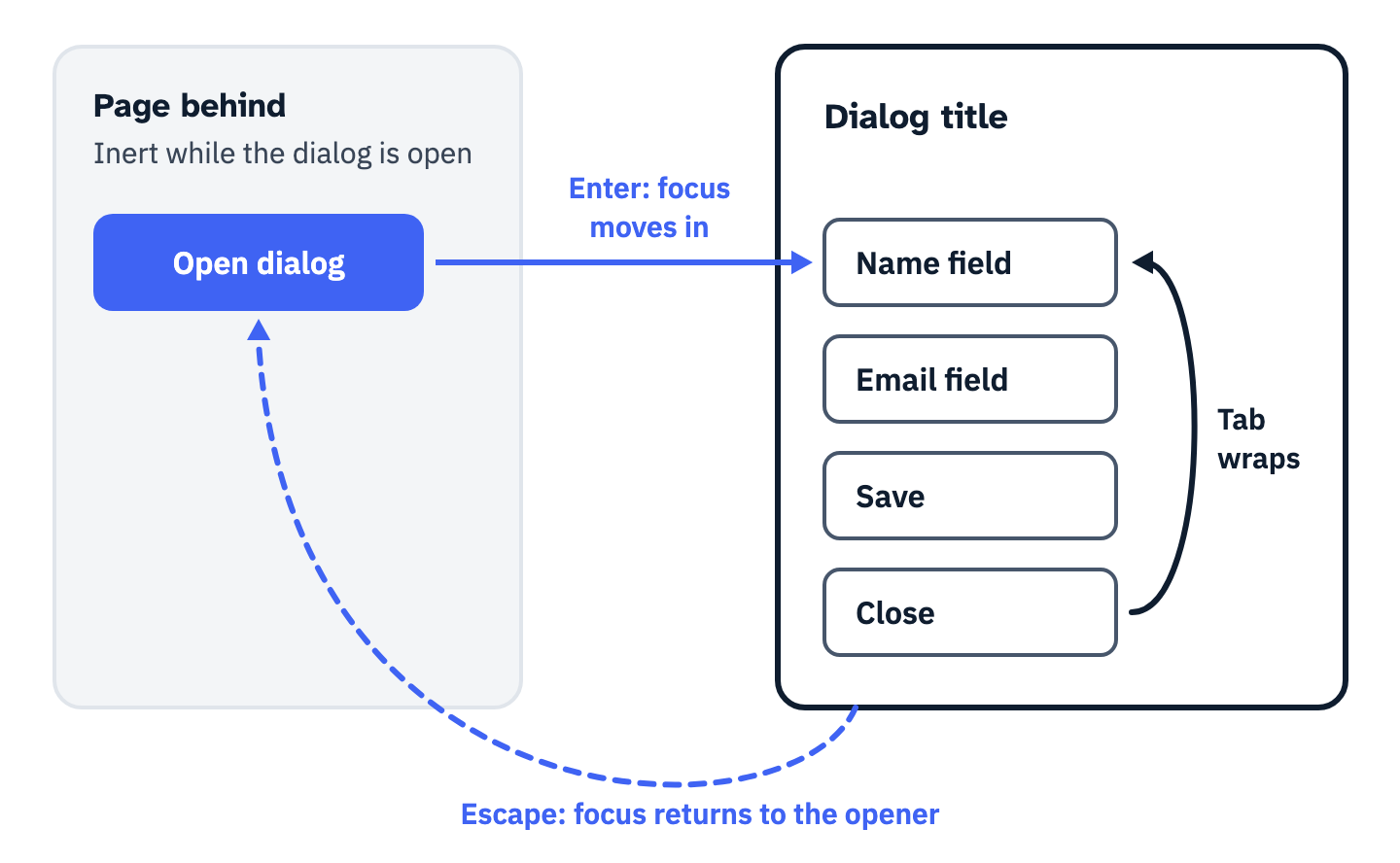
View the data as a list
- Open: Enter on the button that opens the dialog moves focus to an element inside it, the first field here.
- Inside: Tab on the last control moves focus to the first, and Shift+Tab on the first moves it to the last. The page behind is inert.
- Close: Escape closes the dialog, and focus returns to the element that opened it.
Tabs
The APG tabs pattern gives the tab list a single tab stop: Tab lands on the active tab, the arrow keys move between tabs, and the next Tab enters the panel. Only the active tab has aria-selected="true". A strip whose styling changes while that state does not exposes the control “incompletely,” the word W3C uses in failure F15. The tabs guide includes a vanilla JavaScript pattern and what changes in React and Vue.
- Must pass, beyond the baseline: 1.3.1 Info and Relationships.
- One-minute check: Tab in and confirm focus is on the selected tab. Press Right Arrow, then Tab, and confirm focus lands in the panel. The screen reader should say “tab” and “selected.”
Accordion
In the APG accordion pattern, each header is a button inside a heading, with aria-expanded set to true while its panel shows and false while it is hidden. An arrow icon that flips while the attribute stays put fails the part of 4.1.2 that requires “notification of changes.” The accordion guide sets accordions against single disclosures and gives a test for the live page.
- Must pass, beyond the baseline: 1.3.1 Info and Relationships.
- One-minute check: toggle each header with Enter and with Space, and confirm links inside a collapsed panel take no focus. The screen reader should say “collapsed,” then “expanded.”
Carousel
A carousel that moves by itself for more than five seconds beside other content needs a way to pause, stop or hide it under 2.2.2 Pause, Stop, Hide, unless the movement is essential to the activity. WCAG applies that criterion to all content on the page. The APG carousel pattern puts the rotation control first in the carousel’s tab order and stops rotation when focus enters or the mouse hovers. Icon arrows need names, and WebAIM counted empty buttons on 30.6% of home pages in 2026. The carousel guide also lays out what to build instead of a carousel.
- Must pass, beyond the baseline: 1.1.1 Non-text Content; 2.2.2 Pause, Stop, Hide.
- One-minute check: watch it for six seconds. Tab in and confirm rotation halts and a pause or stop button can be reached; the APG pattern puts it first. Listen for a name on every button.
Navigation passes when a keyboard user can open it, close it and skip it
Navigation menu
The APG disclosure navigation example skips the ARIA menu role because “Typical site navigation does not need all the keyboard interactions specified by the menu and menubar pattern,” and uses buttons with aria-expanded instead. The WebAIM Million 2026 found role="menu" on 5.7% of home pages, and barriers in 22% of those menus. The example also closes dropdowns on Escape, which it calls “necessary to meet” 1.4.13 Content on Hover or Focus. The navigation menu guide explains when a disclosure beats a menubar and how mobile drawers fail.

- Must pass, beyond the baseline: 1.4.13 Content on Hover or Focus; 3.2.3 Consistent Navigation.
- One-minute check: Tab along the top level and confirm each stop shows focus. Open a submenu with Enter, press Escape and confirm focus returns to its button. A flyout opened on hover should stay open while the pointer moves onto it.
Skip link
2.4.1 Bypass Blocks asks for a way past blocks repeated across pages. A link to the main content at the top of the page is one sufficient technique, G1, and landmarks and headings are others. WebAIM found skip links on 17.1% of home pages in 2026 and one in ten of them broken. The skip link guide has HTML and CSS to ship and the pitfalls automated tools miss.
- Must pass, beyond the baseline: 2.4.1 Bypass Blocks; 2.4.3 Focus Order.
- One-minute check: press Tab once on a freshly loaded page and confirm a visible skip link appears. Press Enter, then Tab, and confirm focus is inside the main content.
Forms and sign-in fail on missing labels, silent errors and memory tests
WebAIM found missing form input labels on 51% of home pages in 2026, and 33.1% of all inputs lacked a proper label. Sign-in adds 3.3.8 Accessible Authentication (Minimum), which bars a cognitive function test, “A task that requires the user to remember, manipulate, or transcribe information,” at any step of authentication unless the step offers another method, a mechanism that helps, or a test that only asks the user to recognize objects or to identify non-text content they provided.
Form fields
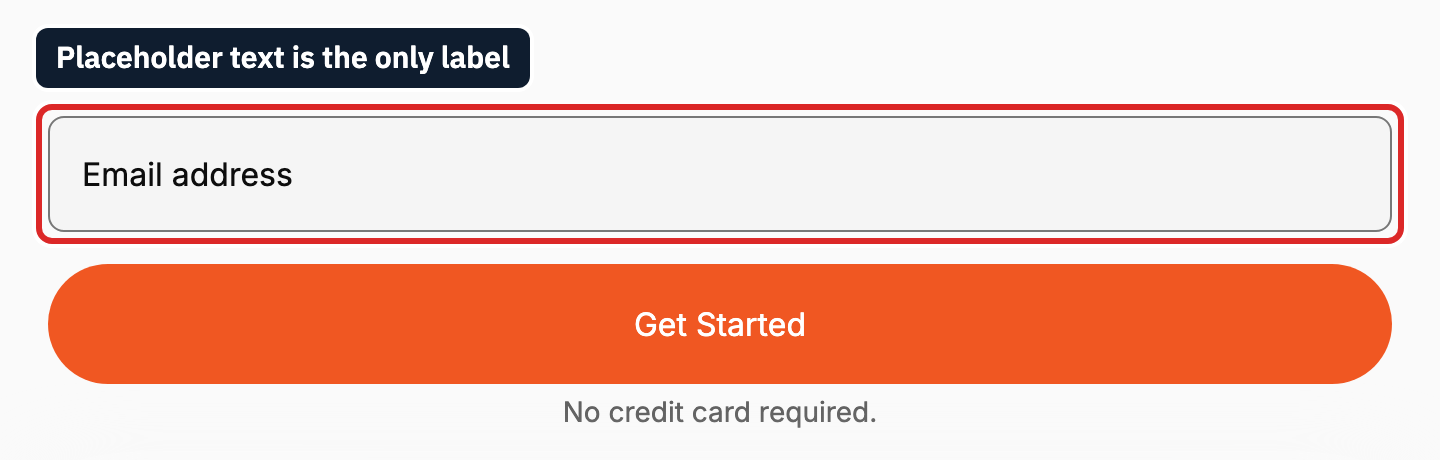
A placeholder is not a label. The HTML standard says the attribute “should not be used as an alternative to a label.” Under HTML-AAM, a W3C Working Draft, browsers use the placeholder as the last source of the accessible name, so such a field is named but loses its visible label once typing starts. A field with no name at all is failure F68. The fix is a visible label whose for matches the field’s id, with fieldset and legend around groups. The forms guide orders the fixes from native controls and labels to grouping, errors and focus.
- Must pass, beyond the baseline: 1.3.1 Info and Relationships; 1.3.5 Identify Input Purpose, for fields that collect information about the user; 2.4.6 Headings and Labels; 3.3.2 Labels or Instructions.
- One-minute check: click each label and confirm focus enters its field. Type, and confirm the label stays visible. The screen reader should read the label, the required state and any hint.
Error messages
3.3.1 Error Identification asks that a detected error be identified and “described to the user in text.” Color may still mark the field, but a field marked by color alone is failure F81. An error that appears without moving focus is a status message, and technique ARIA19 exposes it with role="alert". The error message guide rewrites vague messages and shows two focus patterns that work.
- Must pass: 1.4.1 Use of Color; 3.3.1 Error Identification; 3.3.3 Error Suggestion; 4.1.3 Status Messages.
- One-minute check: submit the form empty. Each error should name its field in text and be read with its label. Focus should move to a summary or the first invalid field, or the errors should be announced where focus stays.
Password field
A password is a cognitive function test, so the field passes 3.3.8 through a mechanism, and WCAG’s note names “support for password entry by password managers” and “copy and paste.” A field that blocks paste or password manager fill fails 3.3.8 unless an alternative is provided, per the Understanding document. The autocomplete values current-password and new-password are on WCAG’s list of input purposes for 1.3.5, and a show-password toggle has to expose its state under 4.1.2. The password field guide covers the show-password toggle, the autocomplete tokens and a test checklist.
- Must pass, beyond the baseline: 1.3.5 Identify Input Purpose; 3.3.2 Labels or Instructions; 3.3.8 Accessible Authentication (Minimum).
- One-minute check: paste a password, then let a password manager fill the field. Operate the show-password toggle with Space and listen for its state.
Password strength indicator
A meter that tells weak from strong only by color fails 1.4.1 Use of Color, so the rating needs a word as well. When that word changes as the user types and focus stays in the field, it fits WCAG’s definition of a status message, information “on the success or results of an action.” The strength indicator guide weighs the algorithms and the markup that exposes the rating.
- Must pass: 1.4.1 Use of Color; 3.3.2 Labels or Instructions; 4.1.3 Status Messages.
- One-minute check: type a weak password, then a strong one. The rating should show as a word and be read out without focus leaving the field.
Two-factor sign-in step
W3C’s Understanding document for 3.3.8 is direct: “A service that requires manual transcription of a verification code is not compliant,” and with multi-factor authentication “all steps need to comply.” Six one-digit boxes are the case W3C draws in F109, where pasting the code “only fills in one digit in the first input.” The two-factor guide compares methods and covers enrollment and recovery.
- Must pass, beyond the baseline: 3.3.8 Accessible Authentication (Minimum).
- One-minute check: paste a full code into the first box and confirm all of it lands. Walk the enrollment and recovery screens and confirm each offers a route with no transcription.
CAPTCHA
1.1.1 Non-text Content asks for a text alternative and “alternative forms of CAPTCHA using output modes for different types of sensory perception.” At sign-in, 3.3.8 excepts object recognition at Level AA but not transcription, and an audio version the user must type out “cannot be used to meet the Alternative exception.” The CAPTCHA guide compares challenge types and the checks that ask nothing of the user.
- Must pass, beyond the baseline: 1.1.1 Non-text Content; 3.3.8 Accessible Authentication (Minimum), at sign-in.
- One-minute check: solve it with the keyboard alone and try the non-visual alternative. On a sign-in page, confirm a route that asks you to type nothing you are shown or played.
Session timeout
A timeout warning uses the Extend option of 2.2.1 Timing Adjustable, Level A: the user “is warned before time expires and given at least 20 seconds to extend the time limit with a simple action,” and may extend “at least ten times.” Turning the limit off, a user-set limit of ten times the default, and limits over 20 hours also pass. Warning users how long inactivity can last before data is lost is 2.2.6 Timeouts, Level AAA. The session timeout guide includes a manual test script for QA.
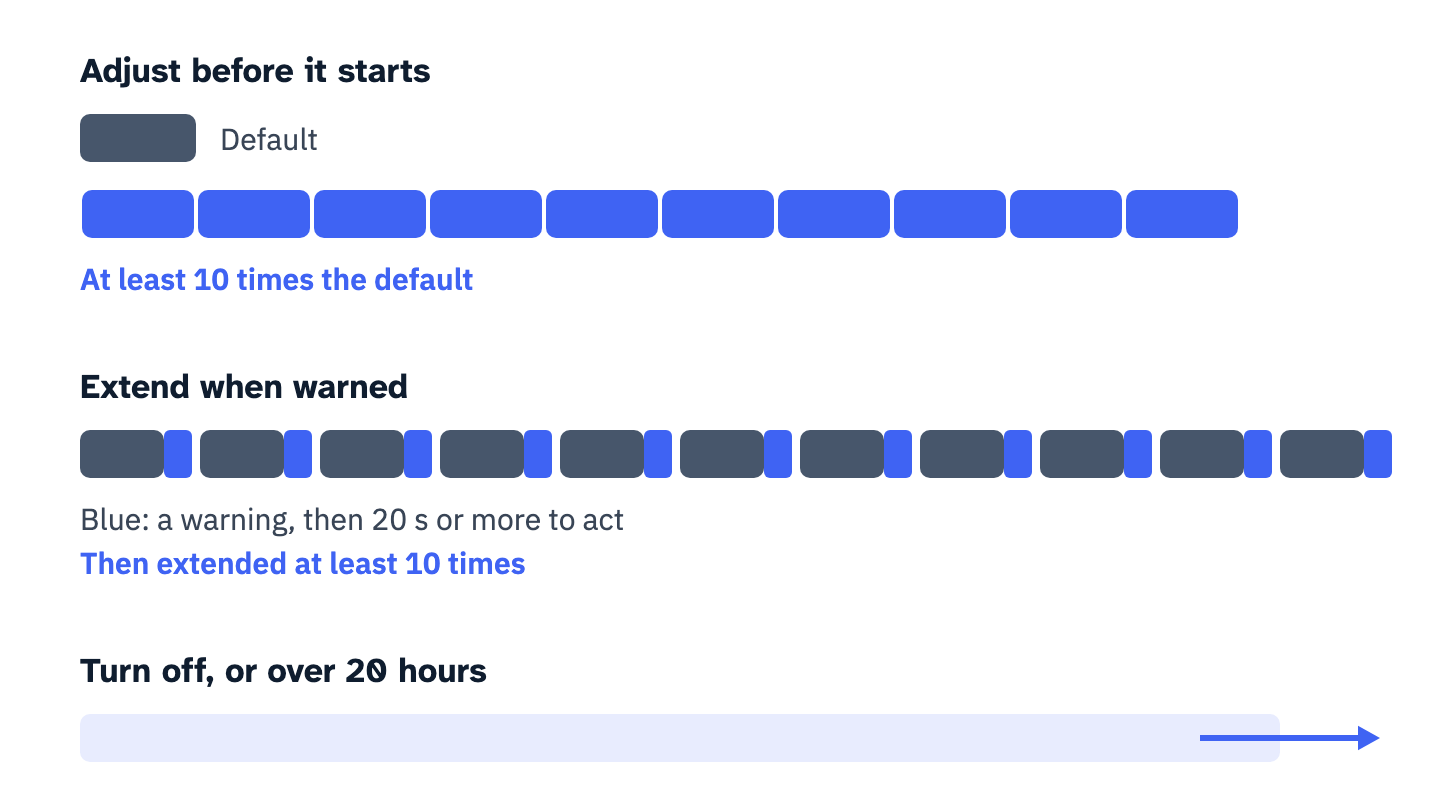
View the data as a list
- Adjust: before meeting the limit, the user can set it over a range at least ten times the default.
- Extend: the user is warned before time expires, has at least 20 seconds to extend with a simple action, and can extend at least ten times.
- Turn off: the user can turn the limit off before meeting it.
- 20 hour exception: a limit longer than 20 hours passes.
- Not drawn: the real-time exception and the essential exception.
- Must pass, beyond the baseline: 2.2.1 Timing Adjustable.
- One-minute check: shorten the session in a test environment. Confirm the warning gives at least 20 seconds, extends the session with one key and can be repeated ten times.
Tables and charts must expose in code what the eye reads from the layout
Data table
W3C’s tables tutorial puts 1.3.1 into markup: “Header cells must be marked up with <th>, and data cells with <td>,” with scope, or id and headers, for complex grids. Missing header markup is failure F91. In the APG sortable table, each sortable header holds a button and the sorted column carries aria-sort. Scrolling in two directions is allowed, since 1.4.10 Reflow excepts “data tables (not individual cells).” The data table guide handles multi-level headers and the choice between scrolling and cards.
- Must pass: 1.3.1 Info and Relationships; 1.4.10 Reflow; the baseline, for sort controls.
- One-minute check: with the screen reader’s table commands, move along a row and down a column and confirm each cell is read with its headers. Sort a column and confirm the direction is announced.
Chart
A chart is a complex image, and W3C’s tutorial on complex images asks for “a two-part text alternative”: a short description and a long one, which for a chart is the data as text or a table. Under 1.4.11 Non-text Contrast, W3C treats the lines of a graph and the slices of a pie as graphical objects that need 3:1, unless the values are also given another way. Series told apart by color alone fail 1.4.1, and hover tooltips fall under 1.4.13. The chart guide covers the equivalent data layer and SVG against canvas.
- Must pass: 1.1.1 Non-text Content; 1.4.1 Use of Color; 1.4.11 Non-text Contrast; 1.4.13 Content on Hover or Focus; the baseline, for an interactive chart.
- One-minute check: find the same numbers as text or a table. View the chart in grayscale, then open and close a tooltip from the keyboard.
Scripted components must announce what changed and keep focus on a real element
Drag and drop
2.5.7 Dragging Movements requires that anything done by dragging “can be achieved by a single pointer without dragging,” unless dragging is essential. For a sortable list, the Understanding document suggests “adjacent controls for moving the element up or down,” and it keeps the rule “separate from keyboard accessibility,” so keyboard support alone does not pass. A list without a single-pointer method fails as F108 describes. The drag and drop guide gives a keyboard model and the announcements for reordering.
- Must pass, beyond the baseline: 2.5.7 Dragging Movements; 4.1.3 Status Messages, for position announcements.
- One-minute check: reorder an item with clicks only, then with the keyboard only. The screen reader should announce the new position.
Live region
A live region carries a status message to a screen reader without moving focus, which is what 4.1.3 Status Messages asks for. The Understanding document draws the line: a list of search results is not a status message, and “18 results returned” is, when it takes no focus. role="status" (ARIA22) is the polite channel; an assertive region “could potentially clear the speech queue,” per ARIA 1.2. A message with no role or property is failure F103. The live region guide explains polite and assertive choices and why regions added late stay silent.
- Must pass: 4.1.3 Status Messages; 3.3.1 Error Identification, when the message reports an error.
- One-minute check: with a screen reader running, add an item to a cart and keep focus where it is. The change should be spoken once.
Custom JavaScript widgets
W3C has catalogued how scripted controls fail: a div or span made into a control with no role is F59, a function wired only to mouse or touch events is F54, and script that removes focus as it arrives is F55, which fails 2.1.1, 2.4.7 and 3.2.1 at once. The JavaScript guide sorts the failures into unannounced updates, broken focus and mouse-only controls.
- Must pass, beyond the baseline: 3.2.1 On Focus.
- One-minute check: Tab to every control that reacts to a click and operate it with Enter or Space. Confirm that focus alone changes nothing and that each control has a role.
Single-page app views
In WCAG’s terms, an app whose views share one address is one web page: the definition’s own example is a web mail program that “lives entirely at http://example.com/mail.” Every view is part of what has to conform. When a view changes without a page load, move focus to the new view’s heading or announce the new view in a live region. The guide to day-spa booking sites built in React or Vue walks through route changes, calendars and payment steps.
- Must pass: 2.4.3 Focus Order; 4.1.3 Status Messages, for messages inside a view; the baseline, for every control in every view.
- One-minute check: follow a link that swaps the view. Focus should not be left on a vanished control, and the screen reader should mention the new view. Repeat with the Back button.
Checkout, filters and the CMS carry the same rules into whole processes
Checkout
Checkout is WCAG’s own example of a complete process: “All pages in the series from start to finish (checkout) conform in order for any page that is part of the process to conform.” Payment adds 3.3.4 Error Prevention (Legal, Financial, Data): the order is reversible, checked for input errors with a chance to correct them, or reviewed and confirmed before it is final. 3.3.7 Redundant Entry covers a billing address already typed as the shipping one. A payment iframe takes a title (H64). The checkout guide covers third-party payment widgets and what to ask their vendors.
- Must pass, beyond the baseline: 3.3.1 Error Identification; 3.3.2 Labels or Instructions; 3.3.4 Error Prevention (Legal, Financial, Data); 3.3.7 Redundant Entry; 3.3.8 Accessible Authentication (Minimum).
- One-minute check: go from cart to confirmation with the keyboard only, payment fields included. Confirm the order can be reviewed before it is final, reversed, or corrected after a check, and that the billing address can reuse the shipping one.
Product filters
Filters are form controls, so the fieldset and legend grouping in W3C’s grouping tutorial comes first. The result count after a filter applies is a status message, the “18 results returned” case of 4.1.3. A long filter list is also a block to bypass: the Understanding document for 2.4.1 describes an e-commerce page with “A link above the list” that skips the filters. The filters guide builds facets from native fieldsets and announces the result count.
- Must pass, beyond the baseline: 1.3.1 Info and Relationships; 2.4.1 Bypass Blocks, for a long filter list; 2.4.3 Focus Order; 4.1.3 Status Messages.
- One-minute check: tick a filter with Space. Confirm focus does not jump to the top of the page, and listen for the new result count.
CMS templates and the editor
A CMS is judged twice: its published pages by WCAG 2.2, template by template, and its editor as an authoring tool under ATAG 2.0, a W3C Recommendation. Federal agencies also apply Section 508’s 504.2 to 504.4, under which authoring tools offer a mode that creates WCAG 2.0 Level A and AA content, prompt for it, and, where they provide templates, supply conforming ones. The CMS guide separates WCAG for the output from ATAG for the editor and lists questions for vendors.
- Must pass: WCAG 2.2 on every template’s output; ATAG 2.0 where a contract names it; Section 508’s 504 for federal agencies.
- One-minute check: build a page in the editor with the keyboard only and insert an image; the editor should ask for alternative text. Run both passes on the published page.
Your next step
Take the component behind your oldest open finding, run its one-minute check where it ships and log each result by criterion. Fix it in the shared component rather than on one page, then check again in every page and process that uses it. If the team keeps an accessible component library, add both passes to its definition of done.
Two decisions sit outside these documents. The WCAG version and level you owe come from your contract or regulation; the Recommendation says content that conforms to WCAG 2.2 “also conforms to WCAG 2.0 and WCAG 2.1.” How much a Partially Supports row in an ACR matters is the buyer’s call.
Missing focus states, unclear form errors and components that break without a mouse start in design decisions. As part of its web accessibility services, ADA Compliance Pros reviews wireframes, mock-ups and design systems and leaves comments in your design files on what to change and why. After launch or in staging, it tests navigation, forms, dialog boxes and table filtering using only a keyboard and simulating the use of assistive technologies, and helps your team turn the fixes into repeatable component patterns. Tell us which components and flows carry the most risk, and we will scope the accessible design work with you on a call.